Everything BioKids does

From the child's screen to the parent panel, from time rules to an AI that runs on the computer: every BioKids feature, in plain words. All free, all on this computer.
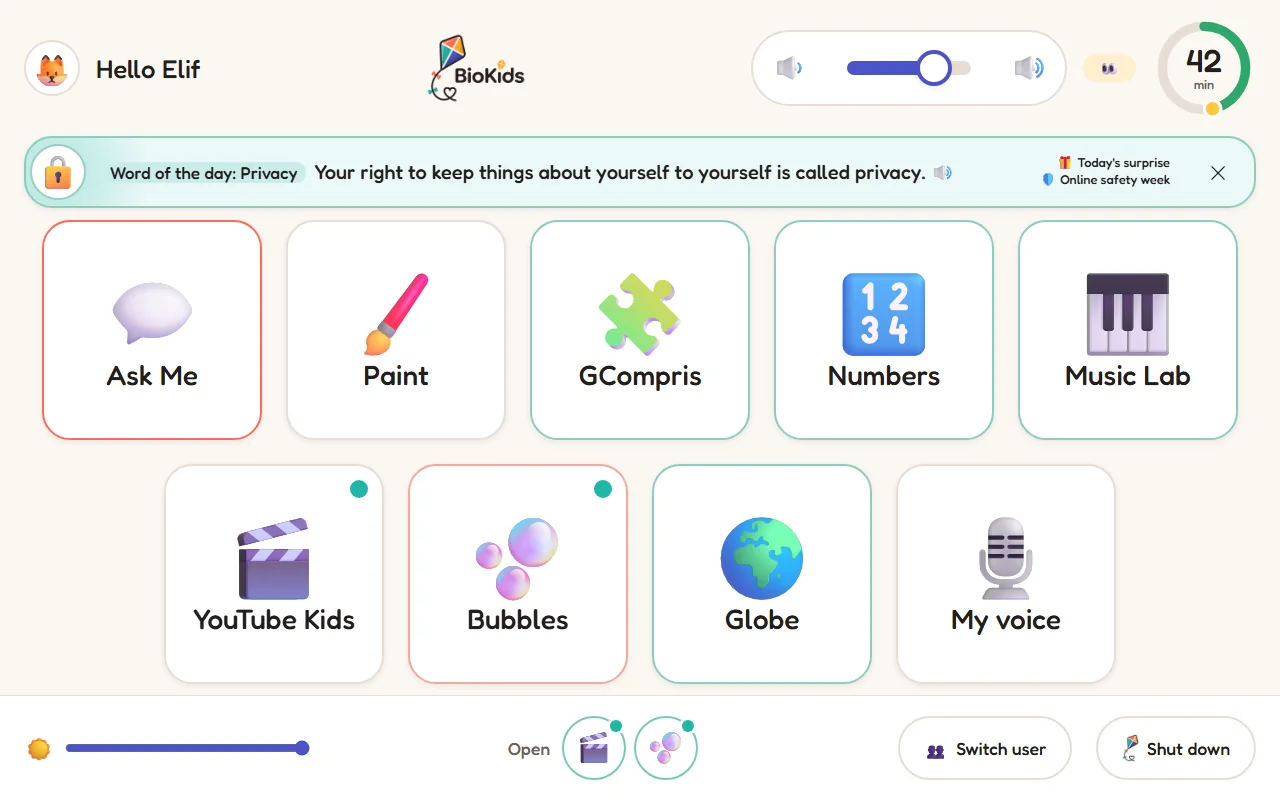
The child's launcher: big tiles such as Ask Me, Paint, GCompris, Numbers and Music Lab; the volume and the time-left ring at the top, the brightness slider at the bottom.
Real screenshot The child's launcher. No desktop, no settings, no terminal.

For the child

Big tiles instead of a desktop

The child taps their own picture on the login screen and lands in a full-screen launcher of the apps and sites you chose.

  • Picture login: no password; every child has their own account and picture.
  • Two looks: bigger tiles and read-aloud for ages 4–7; a clock, the date and "My files" for 8–10.
  • A time-left ring: green, then amber, then red; for the youngest, a sun rides the end of it.

Screens that read themselves

A child who cannot read yet taps a tile and hears its name; screens are read aloud once.

The same bar on every app

Home, the minutes left, the app's own volume, fill the screen, and a Close button that stops even an app that won't close.

Switch without starting over

Open apps wait at the bottom: pause a video, play a game, go back to the video where it was.

English corner

12 units, 98 words, a five-minute lesson a day and a word of the day; with the assistant, simple English chat with Sio.

Reading corner

Turkish reading for ages 5–8, letters to sentences, in the order first grade teaches them.

Today's surprise

A card a day: did you know, a riddle, the animal of the day, the word of the day. 223 cards in 15 weekly themes.

Sticker album

Fifteen minutes of learning earns the day's sticker; there are 64 to collect.

My voice

The child records clips of up to 40 seconds and can send one to you with "Send to a grown-up".

Ask a grown-up

More time, a site or an app: the request comes to you, and your answer is shown and spoken to the child.

Some of the apps and sites that come ready
  • GCompris
  • Tux Paint
  • TuxMath
  • Klavaro
  • KolourPaint
  • SuperTux
  • Frozen Bubble
  • Marble
  • KGeography
  • KBruch
  • Blinken
  • KTuberling
  • GNOME Chess
  • Scratch
  • Code.org
  • Chrome Music Lab
  • PBS KIDS
  • LearnEnglish Kids
  • StoryWeaver
  • YouTube Kids
  • Wikipedia
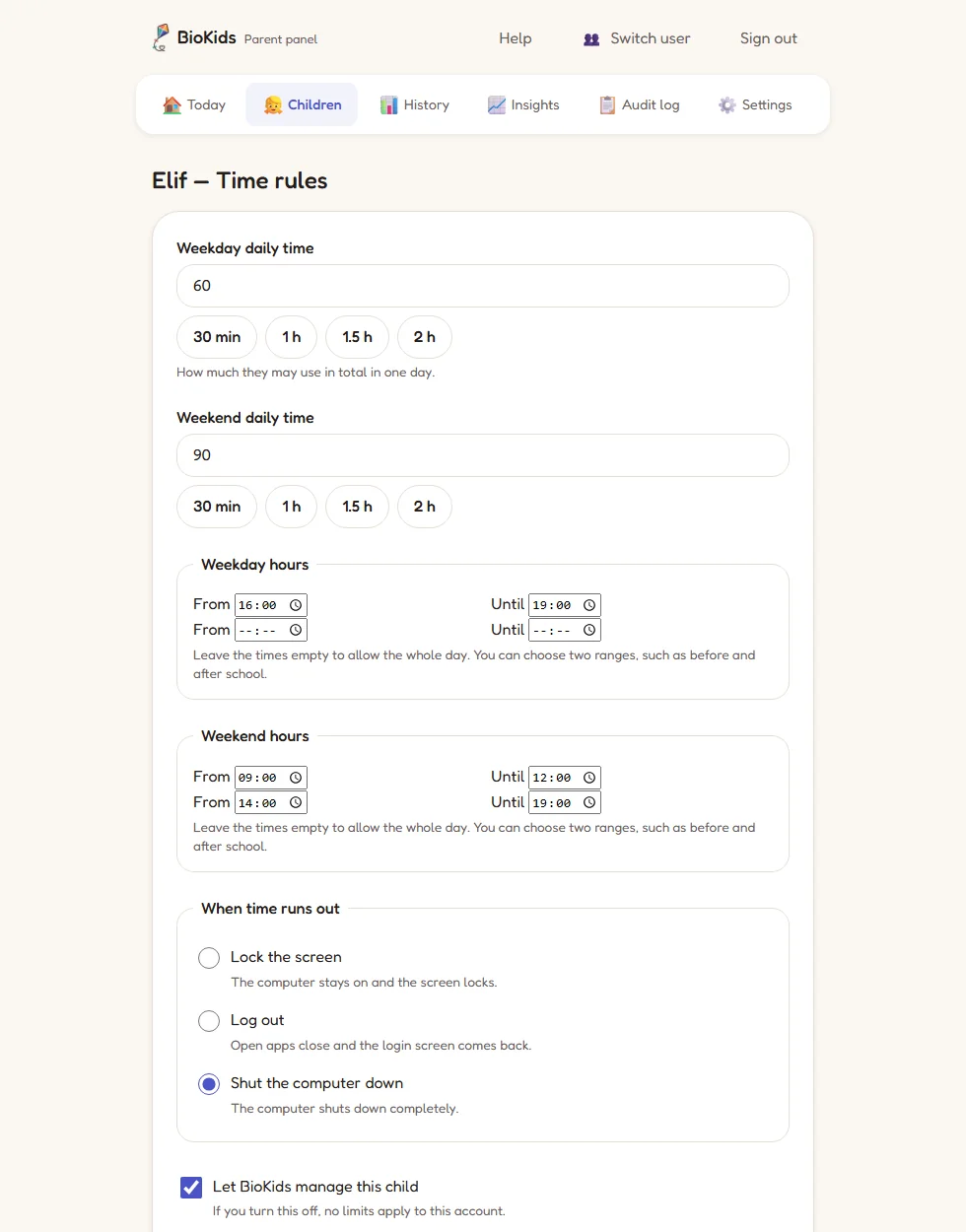
Time rules for Elif: daily time on weekdays and at weekends, quick choices and allowed hours.
Real screenshot A child's time rules. The details wait behind "Advanced".

Time and breaks

Time that can't be fooled, but isn't harsh either

You choose the daily minutes and the hours the computer can be used; BioKids counts, warns, and when time is up does what you chose.

  • Weekdays, weekends or a rule for any single day; up to two windows of allowed hours.
  • Changing the clock does nothing: time is counted on the kernel's boot-time clock, and sleep is not charged.
  • When time runs out: a 2-minute countdown, then lock the screen, log out or shut the computer down.

Time rules guide

Spoken warnings

Zio or Sio says so at 10, 5 and 1 minutes left; the launcher comes to the front for a few seconds.

The last round

Once a day the child can ask for a 2–5 minute last round to finish what they are doing.

Breaks and eye exercises

If you like, a 5-minute break every 40 minutes, with a few moves and a far-away look for the eyes.

Time earned by learning

Minutes in learning apps earn game time (1 for 1, up to +60 minutes a day).

Learn first

Games can wait until the day's learning minutes are done.

Time by kind of app

Separate daily limits for Games, Learning, Web and Free.

Special days

Holiday rules for up to 100 days; "Is today a special day?" gives +1 or +2 hours with a tap.

Good night

When the day ends in the evening, the screen dims gently over the last 10 minutes and Zio says good night.

We're together

Playing together? For 30 minutes, 1 or 2 hours, nothing is counted.
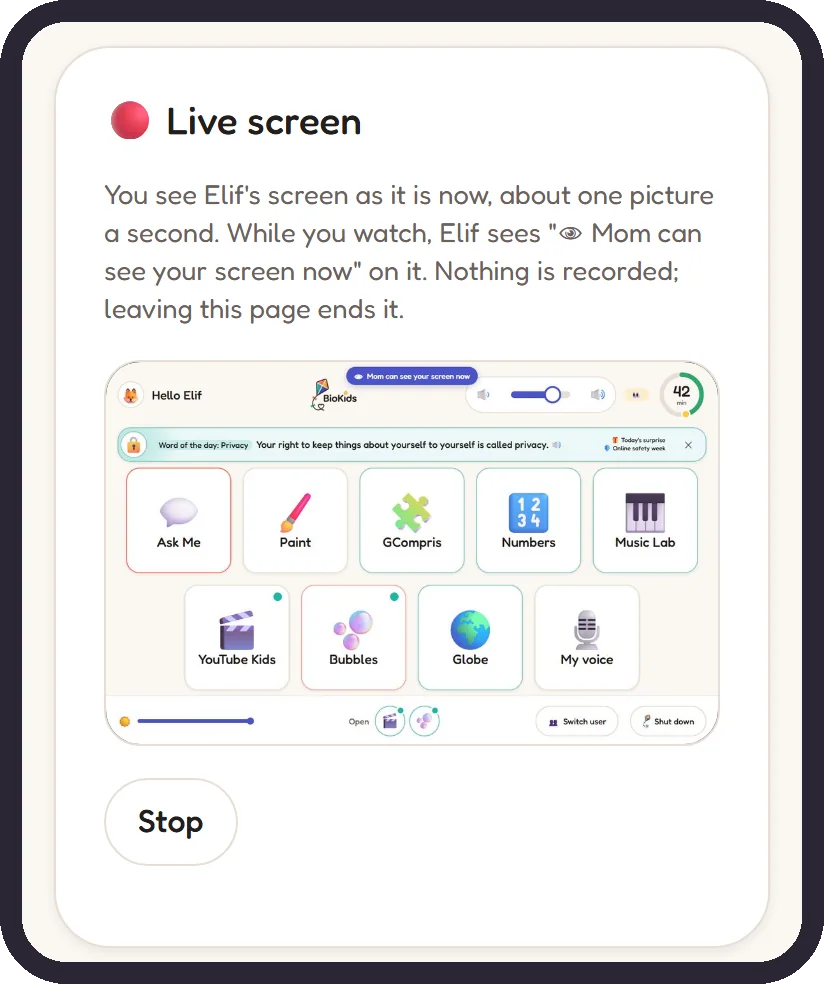
The Live screen card in the parent panel on a phone: the child's screen as it is now, and a Stop button.
Real screenshot The live view, on a phone.

Live view

See the screen now, and your child knows

In the panel: Children → See their screen → Watch live. At the computer or on your phone, about one picture a second.
  • The child's screen says "👁 … can see your screen now"; that sign cannot be turned off.
  • No picture is saved; the latest one lives only in memory. It ends when you press Stop or leave the page.
  • Every time watching starts, it is written in the audit log.
  • There is also a Screen preview: how your rules make the child's screen look.

Live view guide

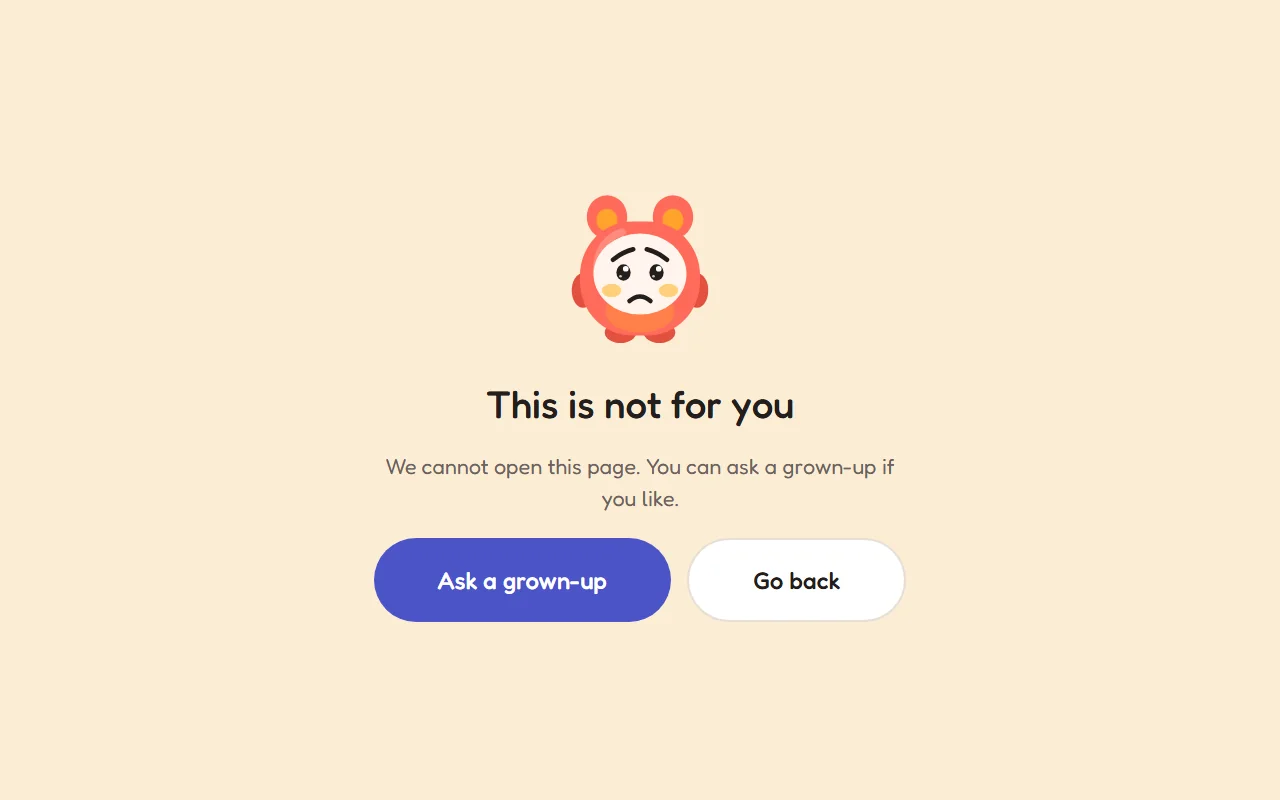
The blocked-site page: a friendly character, "This place is not for you", and Ask a grown-up and Go back buttons.
Real screenshot A blocked site looks like a friendly page to the child.

Safe browsing

Harmful sites closed, requests a tap away

The filter runs on the computer itself, affects only the children's accounts, and works without the internet.
  • About 291,000 adult, gambling, malware and scam domains are always blocked.
  • SafeSearch is enforced on Google, Bing and DuckDuckGo; YouTube is in restricted mode.
  • Two modes: "Open internet, harmful sites closed" or "Only the sites I choose".
  • Words that cannot be searched: add your own to the 89 built-in ones. A blocked search is never sent.
  • If the filter fails, the internet closes entirely; there is no unprotected internet.

Safe browsing guide

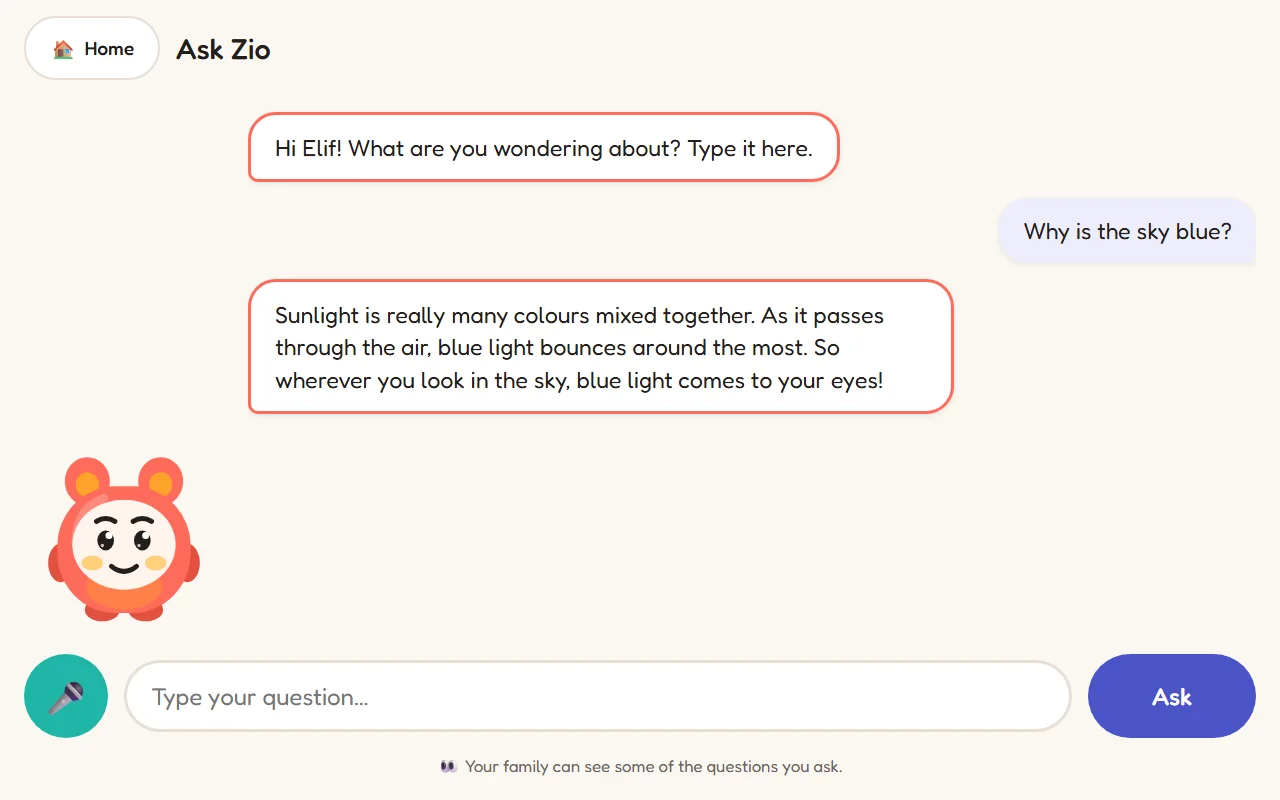
Ask Zio: the child asks "Why is the sky blue?" and gets a short answer for their age.
Real screenshot Ask Me. Answers are made on the computer itself.

Ask Me · on-device AI

An AI assistant with no cloud

The child types, or holds the button and speaks; the answer is short, right for their age, in the language they asked in (English or Turkish), and Zio reads it aloud.

  • Fully offline: Gemma through llama.cpp, Whisper for speech, and an offline Wikipedia to check the answers.
  • You see what it refused (on Today and, if you like, by email); ordinary questions are not kept.
  • At most 5 sentences for ages 4–7 and 7 for 8–10; up to 20 questions every 10 minutes.
  • Optional, and turned on for each child separately.
The models downloaded, by memory
Computer's memoryLanguage modelSpeechTotal download
Under 7 GBNo assistant; the rest of BioKids works fully.
7–12 GBGemma 4 E2B (3.35 GB)Whisper small≈ 4.0 GB
12 GB or moreGemma 4 E4B (5.15 GB)Whisper large-v3-turbo≈ 6.2 GB

Both come with offline Wikipedia packs in English and Turkish (297 MB + 138 MB), and every file is checked against a fixed SHA-256. How to set up Ask Me
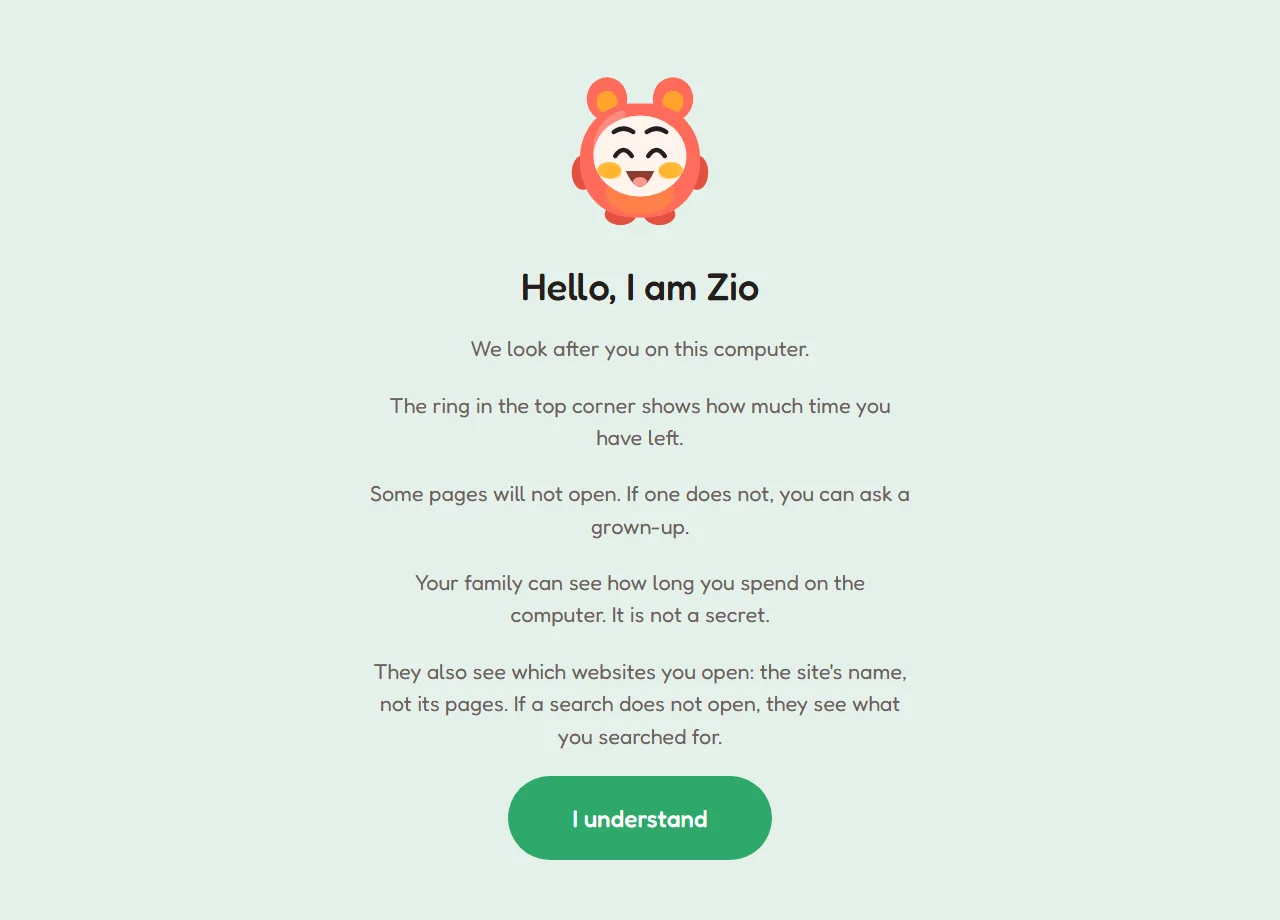
The first start: Zio explains to the child what the family can see.
Real screenshot At the first start, Zio explains what the family can see.

Zio and Sio

A mother's voice and a father's

Zio and Sio are two friends who tell the child what is happening: welcome, time left, a break, time's up, the answer to a request, well done…

  • Out of the box they speak with espeak-ng.
  • Natural voice: one button downloads Piper's natural voice (about 153 MB with its Turkish and English voices).
  • Your own voice: record seven short lines yourself, and your child hears the warnings in your voice. Recordings stay on the computer.
  • If the voice service fails, the child reads the warning on screen instead.

Brightness, sound and display

A screen that suits the eyes and the reader

Brightness and volume are always at the child's fingertips; text size and colours are set for each child.

Brightness slider

Always at the bottom of the launcher; the screen goes down to 20% and never fully dark.

Evening dimming

When the day ends after 7 pm, the screen dims step by step to 60% over the last 10 minutes, then goes back.

Sound

A volume bar at the top, and each app's own volume on its bar; Zio can always be heard.

Text size

Normal, Large or Extra large; one setting for the child, another for your panel.

Easy-reading typeface

OpenDyslexic, for children who find reading hard.

High contrast and calm screen

Sharper colours, and a "Calm screen" with no motion.
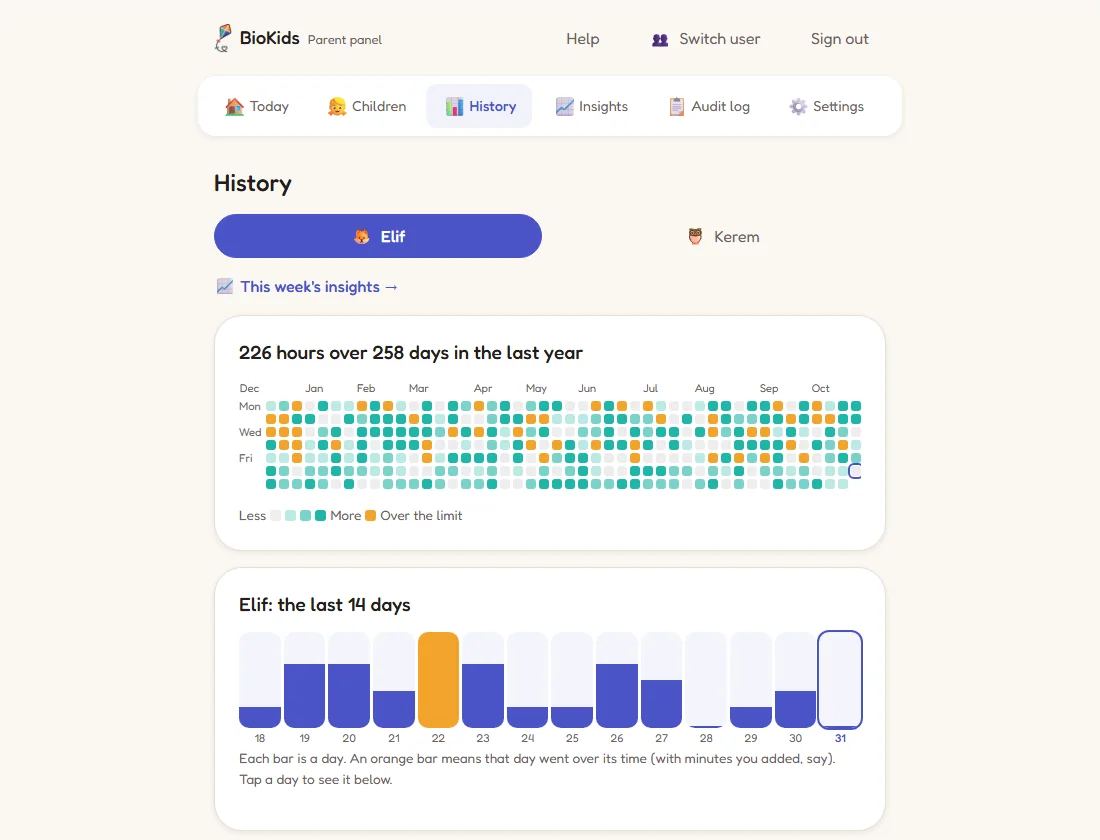
History: a year of daily screen time as a heatmap, with the last 14 days as bars below.
Real screenshot History: a year as a heatmap, two weeks as bars.

History, insights and reports

Where the time went, at a glance

Today shows the moment, History the past year, and Insights tells the story of the week.
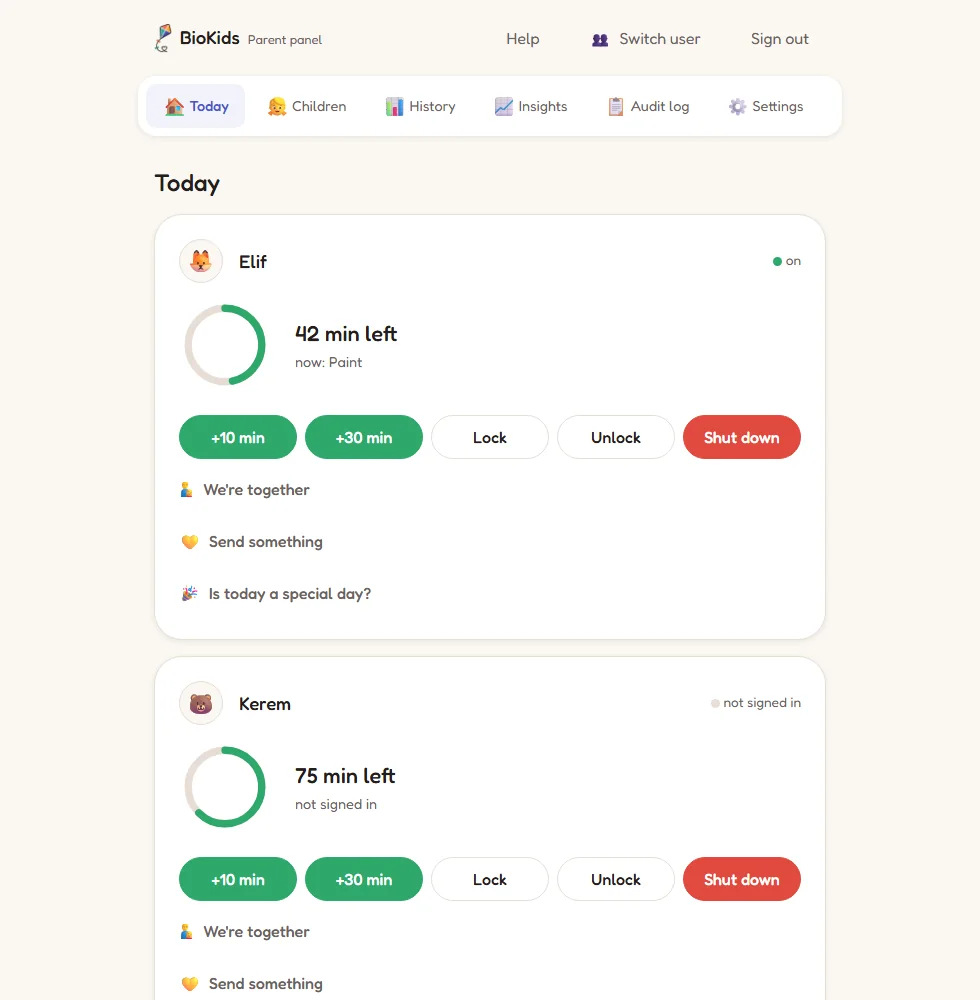
  • Today: a card per child with the time left, what is on screen, +10 min, +30 min, lock, shut down.
  • History: a year-long heatmap, the last 14 days, and every day in detail: apps, sites opened, requests.
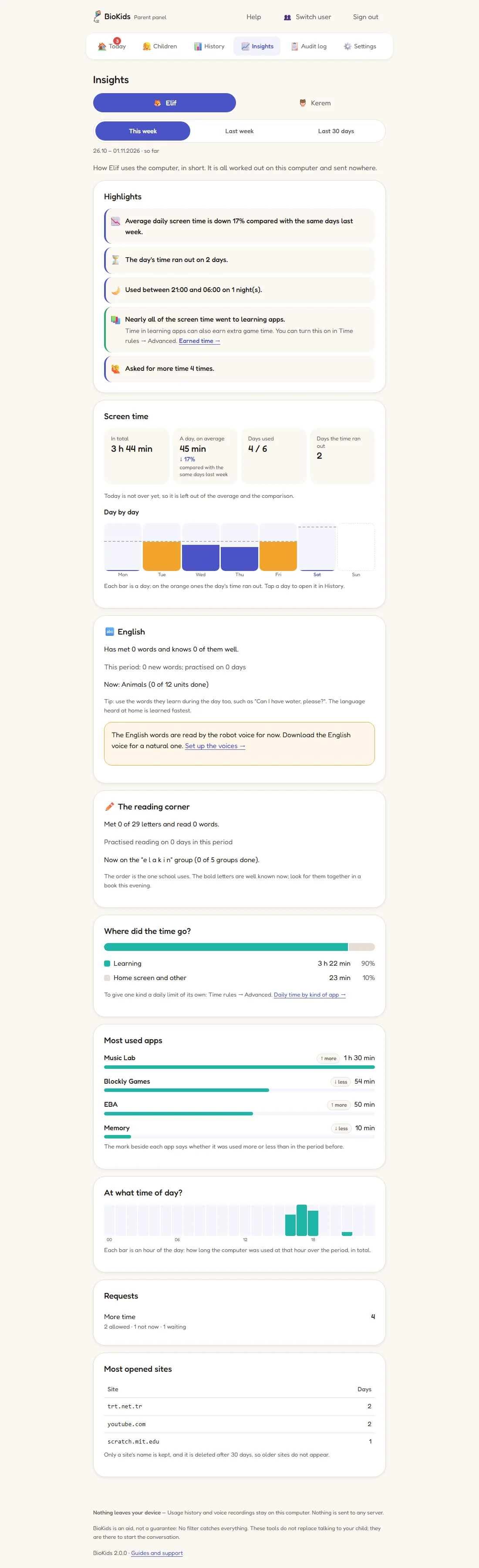
  • Insights: this week, last week or the last 30 days; highlights, time by kind of app, hours of the day, blocked searches.
  • Audit log: every rule change, PIN attempt, time given and clock change; it cannot be deleted and is kept for a year.
The Today screen: Elif's card with the time left, the app on screen, and +10 min and lock buttons.
Real screenshot Today: a card with big buttons for each child.
Insights: the week's highlights, total and daily average time, and the split by kind of app.
Real screenshot Insights: rule-based highlights and charts.

Phone and notifications

The remote in your pocket, the news in your inbox

The panel runs on the computer at 127.0.0.1:7878, and reaches your phone only over your own private network.

Phone access

Four steps with Tailscale and a QR code. No port forwarding, no BioKids server. Guide

Add to Home Screen

The panel opens on your phone like an app.

Told at once

A protection problem, a request from your child, a question the assistant refused: from your own mail server, batched once a minute.

Weekly summary

On Sunday evening, each child's time per day and three highlights. Emails never contain what a child typed or searched.

The warm side

Not only supervision: connection too

Some of what BioKids does exists only for you and your child.

Well done!

One tap sends "Well done!" or a note of up to 140 characters to your child's screen; Zio reads it aloud.

What shall we talk about today?

Up to three things from your child's day to talk about in the evening: the day's card, new words, a favourite app.

Birthday

If you like, Zio says happy birthday and a cake appears on the screen.

Your child's voice

Recordings sent from My voice can be played on your Today screen for 7 days.

Safety and resilience

If something breaks, the child is not left unprotected

BioKids' rule is "fail safe, not silent": if protection is not working, the session locks and you are told.

Fail safe

If the background service stops, the filter fails or a lock does not take, the child's session locks.

PIN, passphrase, recovery code

A 6-digit PIN (stored with argon2, slowed down after 5 wrong tries), a family passphrase for the big things, and an 8-word recovery code.

Up to four parents

Each with their own name, PIN and recovery code; the log says who did what.

Protection checklist

Filter, browser rules, backup, disk, clock: a list of what is in place, and what to do about what isn't.

Encrypted backup

One file, sealed with the family passphrase, to move everything to a new computer.

Children can't install software

No terminal, no settings and no software installs on children's accounts; no guest account.

Being honest

What BioKids doesn't do

We would rather be clear about the limits than let a parent feel safer than they are.

  • No covert monitoring: no hidden screenshots, no keylogging, no location tracking.
  • No AI watching the screen, and no "risk score".
  • No decrypting traffic: there is no proxy in the middle.
  • No phones or tablets; it manages only the computer it is installed on.
  • It doesn't stop a determined adult: booting from a USB stick, removing the disk or someone helping the child are out of scope.
  • It doesn't supervise Windows: on a dual-boot computer, give the Windows account a password your child doesn't know.

Your child's computer, with your home's rules.

Free, open source, and no account needed. A USB stick and half an hour are enough.