
The parent panel normally opens only on the computer itself. Turn on phone access and the same panel opens on your phone too: at home, at work or on the go. Give time, lock the screen, answer a request or watch the screen live.
It uses the free Tailscale app, which builds an encrypted, private network between your phone and the computer that only you can use. Nothing needs changing on your router, and no door is opened to the internet.
Phone access in four steps
Do these at the computer, in the panel. It takes about five minutes in all.
Connect this computer
In the panel go to Settings → Access from your phone and press Turn on phone access. BioKids installs Tailscale on the computer by itself; there is nothing for you to download.
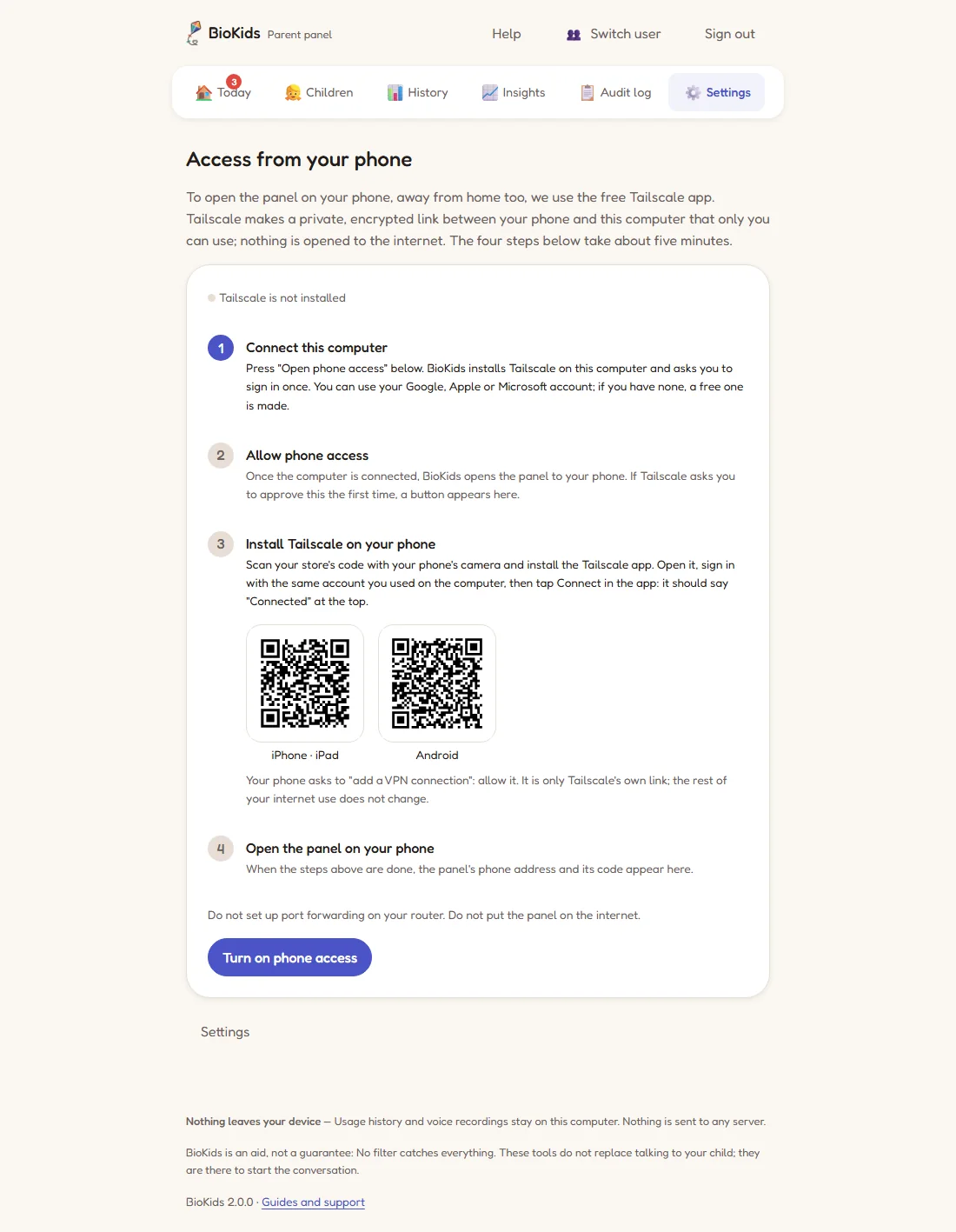
Real screenshot Before you start: Tailscale is not installed yet. Four steps, and Turn on phone access at the bottom. An Open the sign-in page button and a QR code appear. On the page that opens, sign in with your Google, Apple or Microsoft account, or create a free Tailscale account. You can also scan the QR code and sign in on your phone instead.
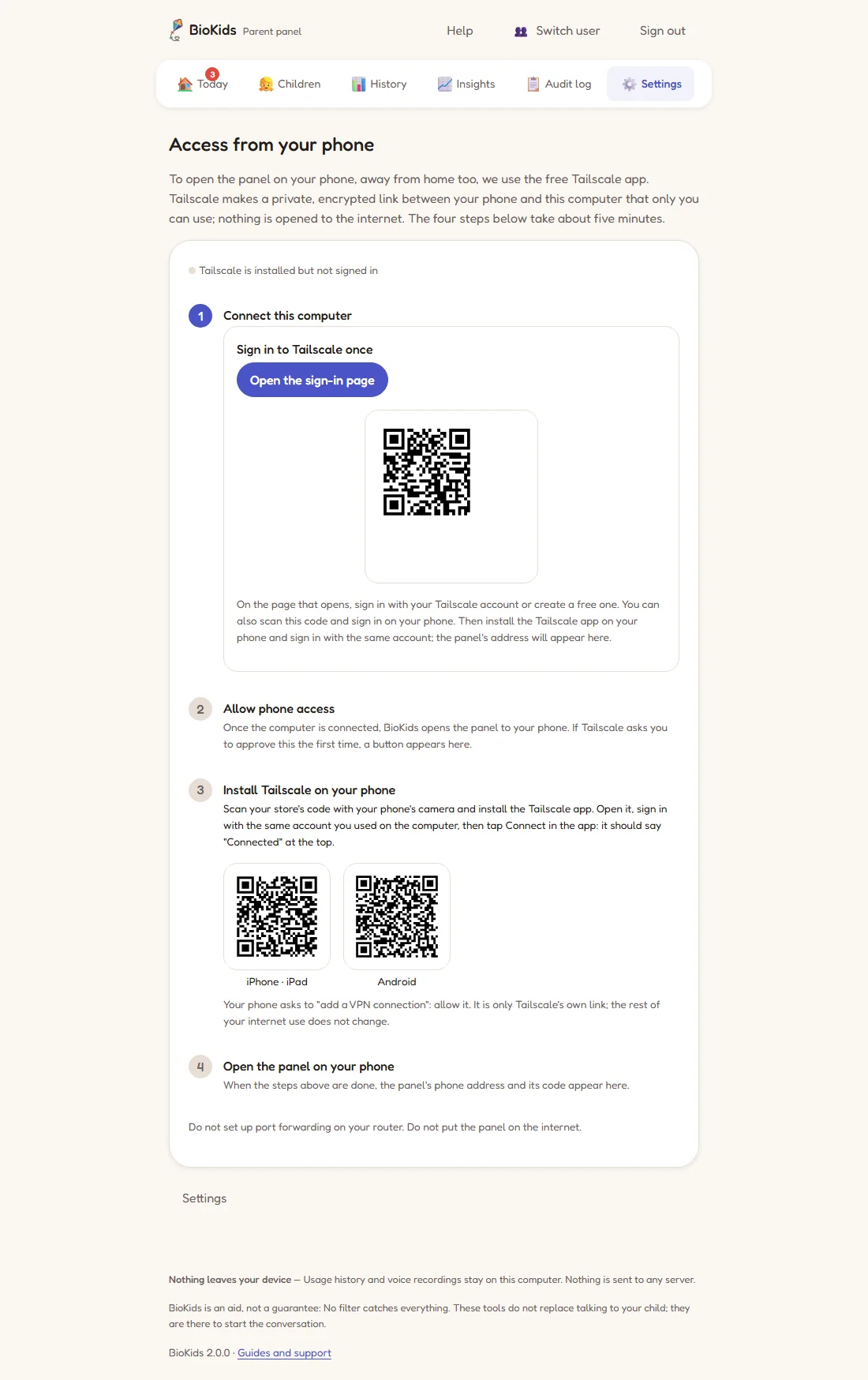
Real screenshot Step one: sign in to Tailscale once, with the button or the QR code. Allow phone access
Once the computer is connected, BioKids opens the panel to your phone. The first time, Tailscale may ask you to approve this feature on your network: an Approve in Tailscale button then appears here. Press it, approve on the page that opens, then press Turn on phone access again. This happens only once.
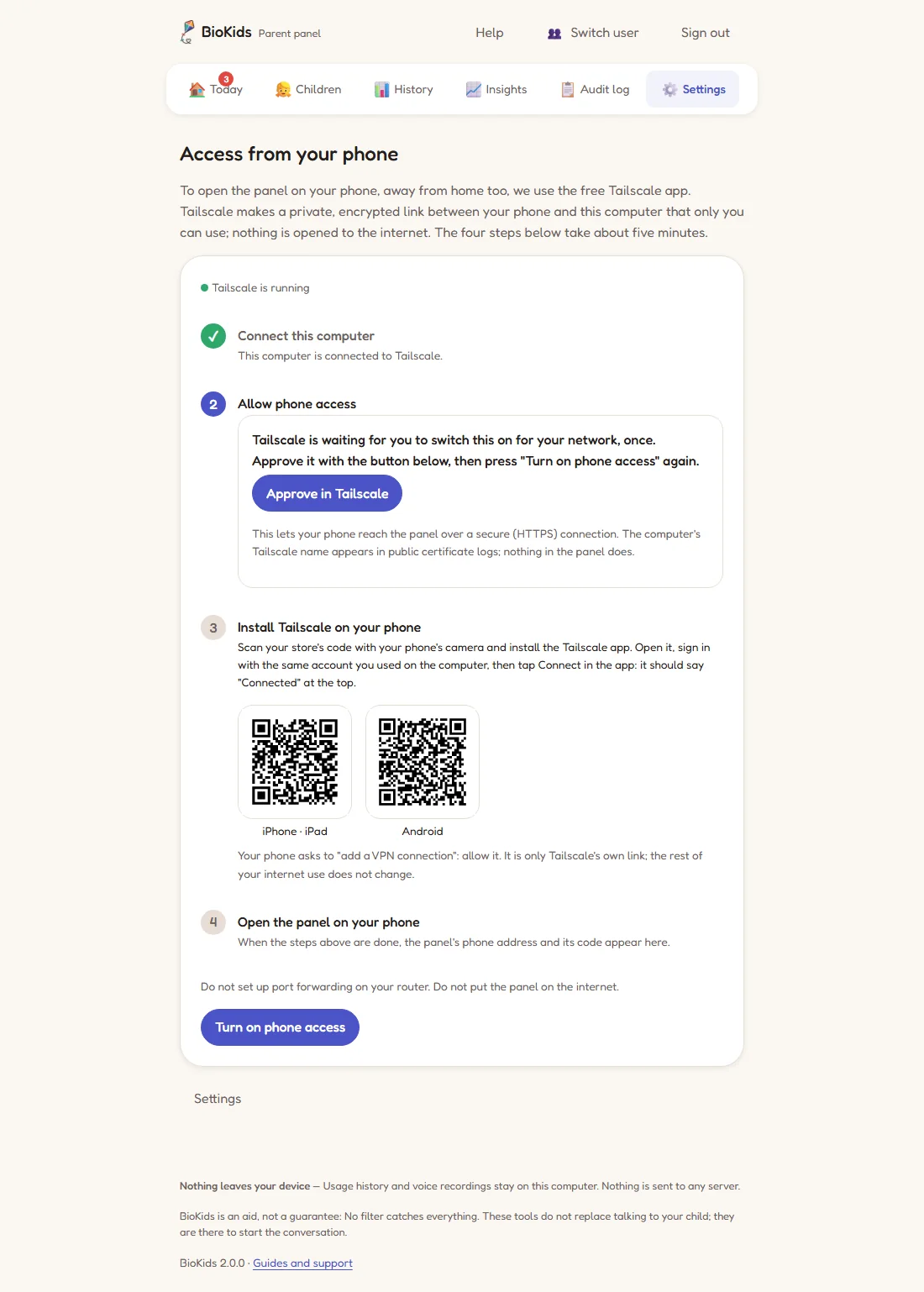
Real screenshot If Tailscale asks for approval, this button appears in step two. Install Tailscale on your phone
Scan the QR code for your phone (iPhone · iPad or Android) with its camera; the Tailscale app opens in the store. Install it, open it, and sign in with the same account you used on the computer.
- The phone asks to add a VPN connection: allow it. It is only Tailscale's own connection; the rest of your phone's internet is unchanged.
- Tap Connect in the app; it should say "Connected" at the top.
Open the panel on your phone
When the first three steps are done, the panel's phone address and a QR code appear. The address looks like
https://your-computer.your-network.ts.net. Scan the code with your phone's camera and enter your PIN.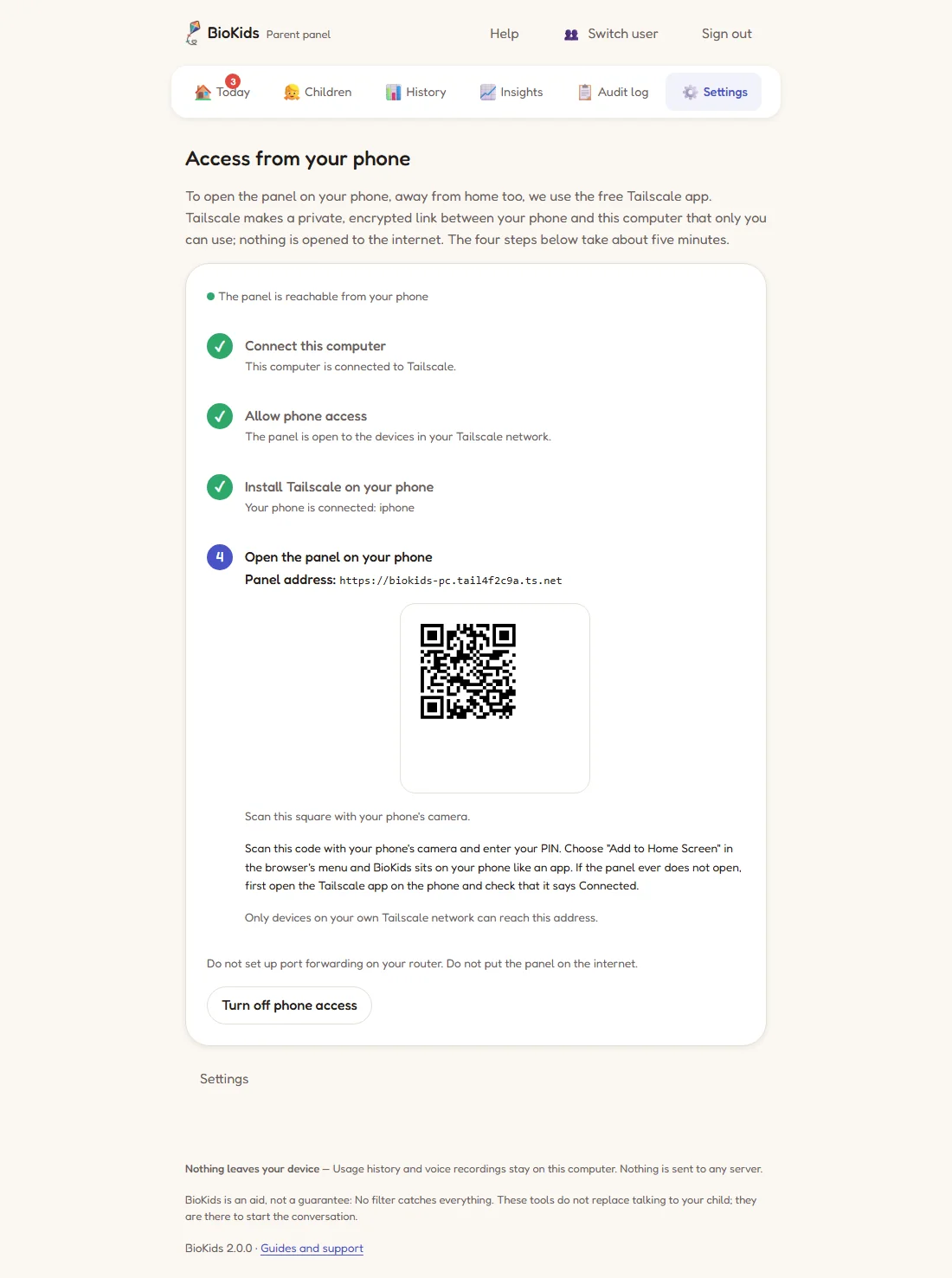
Real screenshot Done: the panel's phone address and its QR code. Only devices on your own Tailscale network can reach it.
Everyday use
To open the panel on your phone, the Tailscale app there just needs to be connected. After 30 minutes without any action the panel signs you out, and you enter your PIN again.
You can do almost everything from the phone: give +10 min, lock or shut down from Today, answer Requests, look at History and Insights, watch the screen live. Only Switch user works at the computer alone.
Turning phone access off
Go to Settings → Access from your phone and press Turn off phone access. The panel no longer opens from your phone. Tailscale stays installed on the computer; to turn access back on, press the same button again.
Something wrong?
The panel will not open on my phone
Open the Tailscale app on the phone and check it says "Connected". Make sure the computer is on and online; a sleeping or switched-off computer cannot be reached. Check that the phone and the computer are signed in to the same Tailscale account.
Does Tailscale cost anything?
No. A free personal Tailscale account is enough for a family's use like this.
Can my partner use it from their phone too?
Yes. Install Tailscale on their phone and sign in with the same account; in the panel, give them their own parent account with their name and PIN under Settings → Parents. Up to four parents are allowed.
What if I lose my phone?
The panel still asks for the PIN, so whoever finds the phone cannot get in without it. Even so, remove that phone from your network in the device list of Tailscale's admin console, on their website.