
The live view lets you see your child's screen as it is right now: at the computer or from your phone, wherever you are. Stuck in a game, a video you are curious about, homework that is "nearly done": one tap is enough.
Starting the live view
Open the panel and pick the child
Open the panel on the computer or on your phone and enter your PIN. Go to Children and press See their screen on your child's card.
Press Watch live
On the page that opens, press Watch live. Your child's screen arrives at about one picture a second; it is not a video but a picture refreshed often, with no sound.
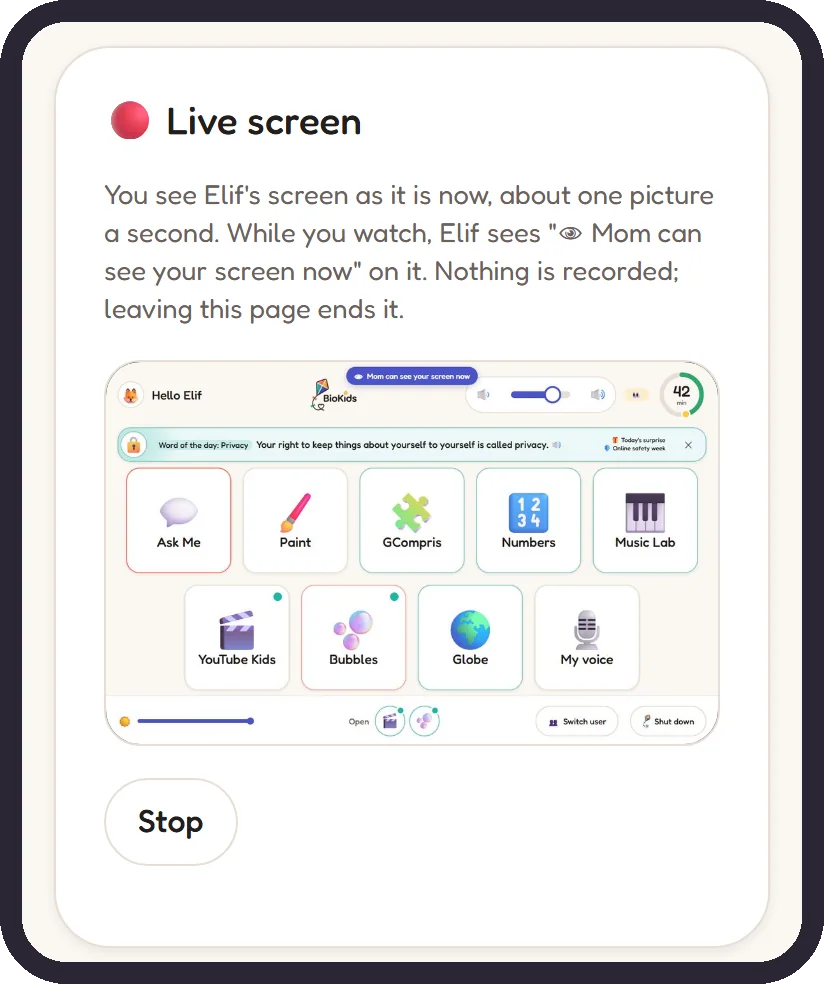
Real screenshot The live view on a phone: the child's screen and the Stop button. Your child sees it
For as long as you watch, every page of the child's launcher shows a line such as "👁 Mum can see your screen now" (with your name), and the bar on top of an open app shows 👁. This sign cannot be turned off.
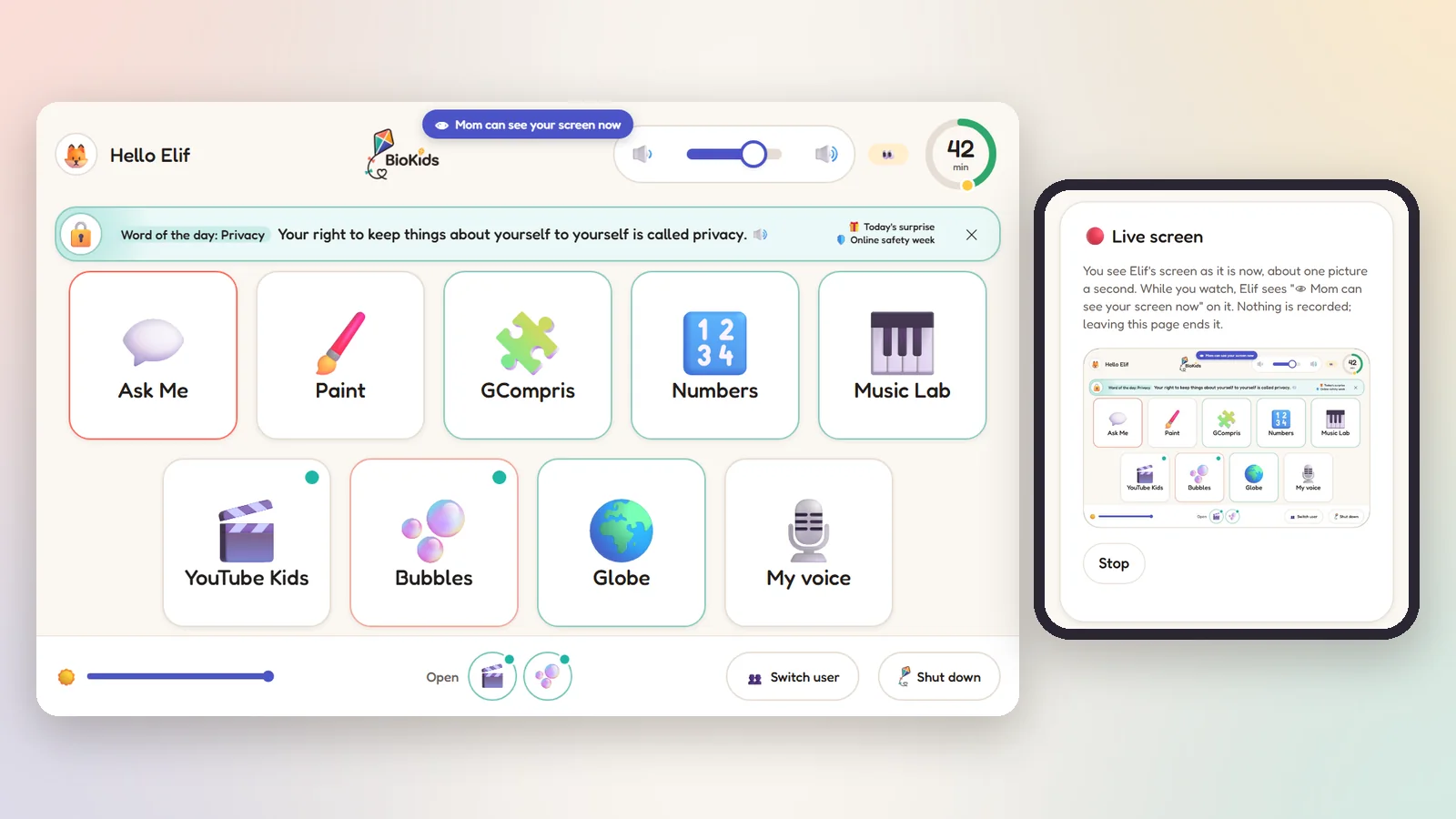
Real screenshot The blue line at the top tells the child they are being watched. Stop watching
Press Stop and watching ends at once. If you leave the page or lock your phone, it also ends by itself within about 10 seconds, and the line on the child's screen goes away.
What is kept, and what is not
- No picture is recorded. Each new picture replaces the last in memory; nothing is written to disk, to a cloud or to an email.
- The picture goes only to your panel: on the computer itself, or to your phone over your own private Tailscale network. There is no BioKids server in between.
- Every start is on the record. Who started watching, and when, shows on the panel's Audit log page, so everyone in the family can see that it happened.
- The picture is at most 960 pixels wide: easy to read on a phone, light on the network.
Screen preview: check without watching
The Screen preview on the same page draws what your child's screen looks like from your rules: which tiles are there, how many minutes are left, what the warnings and the end-of-time screen look like. It does not look at the real screen, so it is ideal for trying out your settings and shows nothing on the child's screen.
The eyes on the screen
In the child's settings (Children → Edit → Screen), The eyes on the screen sets the general supervision sign that always sits on the launcher: shown, reduced to a small icon, or hidden. The live view does not depend on it: while you watch, the warning line always appears.
Something wrong?
I pressed Watch live but no screen appears
The live view works while your child has a session open on the computer; if the computer is off or asleep, or the child has not signed in yet, there is no screen to see. Watching from your phone? Check that the Tailscale app is connected too.
The picture is not smooth, and there is no sound
That is by design: about one picture a second, no sound. The point is to see what is on the screen, not to watch a video from afar.
Can I watch without my child knowing?
No. This is one of BioKids' fixed principles: the child knows they are supervised. No setting turns off the line shown during the live view.