
The setup wizard gives each child a starting time for their age. You can change it whenever you like in the panel: a few basic settings are enough, and the rest waits behind Advanced.
Open the time rules page
In the panel go to Children at the top and press Time rules on your child's card.
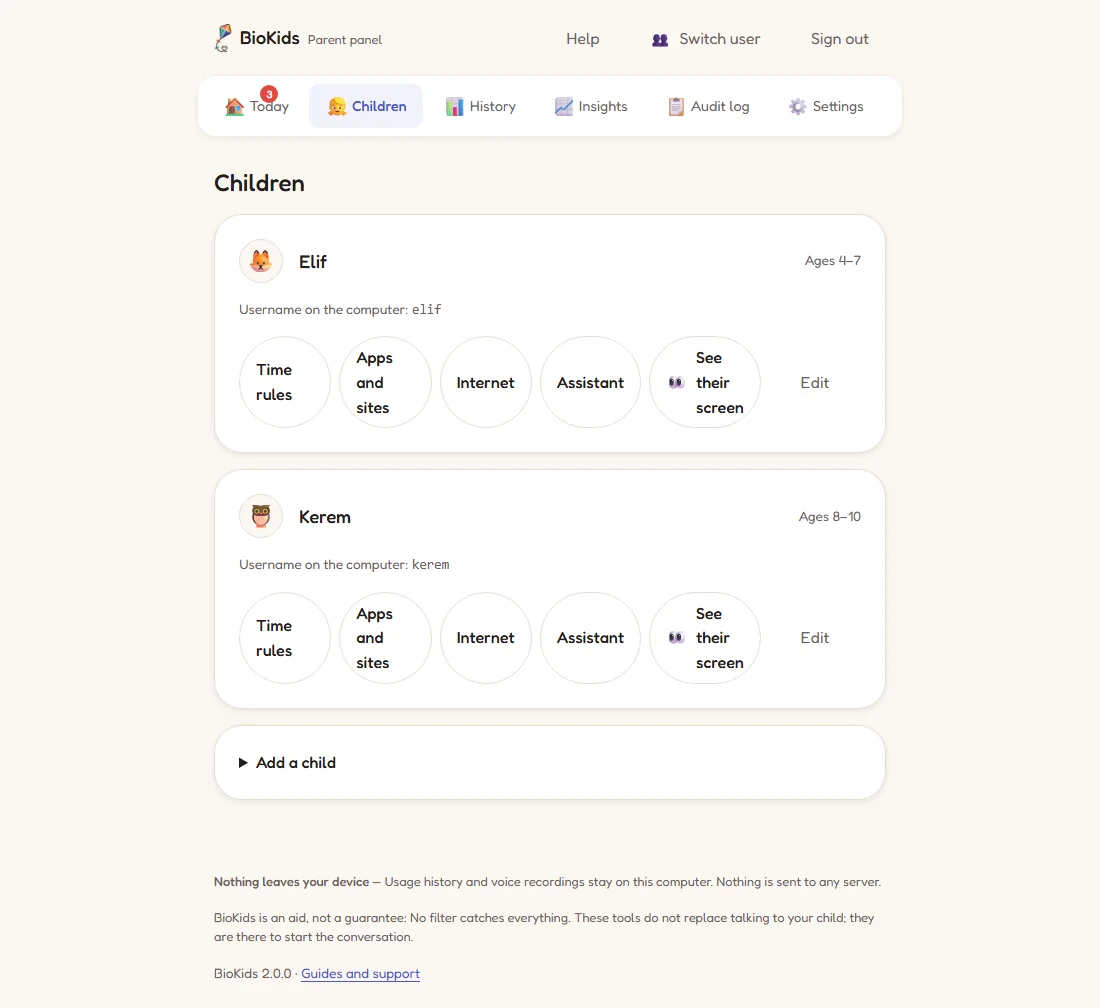
Real screenshot The Children screen: each child has their own rules. Choose the daily time
Weekday daily time and Weekend daily time: how many minutes they may use in total in one day. Type the minutes or press a quick choice: 30 min, 1 h, 1.5 h, 2 h.
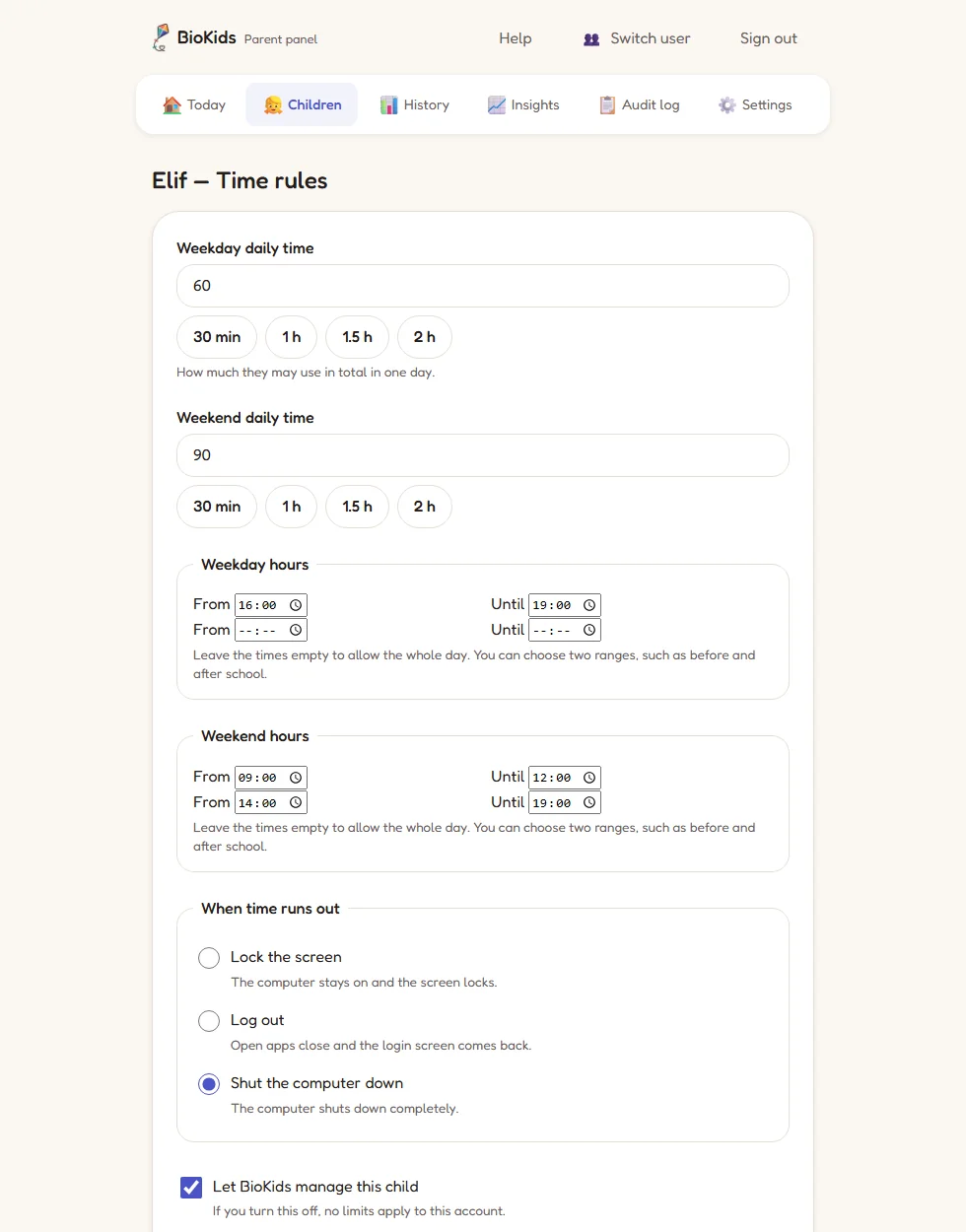
Real screenshot The time rules page. Set the hours they can use it
Under Weekday hours and Weekend hours, choose From and Until. You can choose two ranges, such as before and after school; leave the times empty to allow the whole day.
- If you set both minutes and hours, whichever runs out first wins.
- Between two ranges the screen locks and waits for the next one.
Choose what happens when time runs out
When time runs out has three choices:
- Lock the screen: the computer stays on and the screen locks.
- Log out: open apps close and the login screen comes back.
- Shut the computer down: the computer shuts down completely (the default).
When 10, 5 and 1 minutes are left, Zio or Sio says so aloud. When the time is up the screen locks, and after a 2-minute countdown your choice happens. If someone else is also logged in to the computer, it does not shut down; only the screen locks.
Save
Press Save at the bottom of the page. The new rules apply at once, and the child's open session carries on with the new time.
Advanced settings
Open Advanced on the same page to find these. All are optional; anything left empty changes nothing.
| Setting | What it does |
|---|---|
| Some days are different | Separate minutes and hours for, say, Fridays. Anything left empty follows the weekday or weekend rule. |
| Daily time by kind of app | A cap for Games, Learning, Web and Free; for example, at most 30 minutes of games a day. When a kind is used up, its open app closes and the child sees "That's all of this for today". |
| Games open after how many minutes of learning? | Type 15, for example, and games open once the child has used learning apps for 15 minutes today. |
| Earned time | Time spent in learning apps is added to games time: by default 1 minute for each minute of learning, at most 60 minutes a day. |
| Forced break | Off by default. Turned on, it gives a break of, say, 5 minutes every 40 minutes, with a few moves for the eyes on the screen. The break does not use up their time. |
| The last round | As the time runs out, once a day, the child can tap Let me finish to get 2, 3 or 5 minutes to finish a game or a drawing (3 by default). If they use it, Today tells you. |
There are no limits for single apps; limits work through the four kinds above.
Special days: holidays, school breaks, birthdays
- Is today a special day? For today only: +1 h, +2 h, or a day with no daily limit (the allowed hours still apply). Tomorrow is an ordinary day again. You can also open this from your child's card on Today.
- For several days: a holiday, a school break: choose the first and last day (up to 100 days), then whether those days are Like the weekend or This many minutes a day. Days already over do not change.
During the day
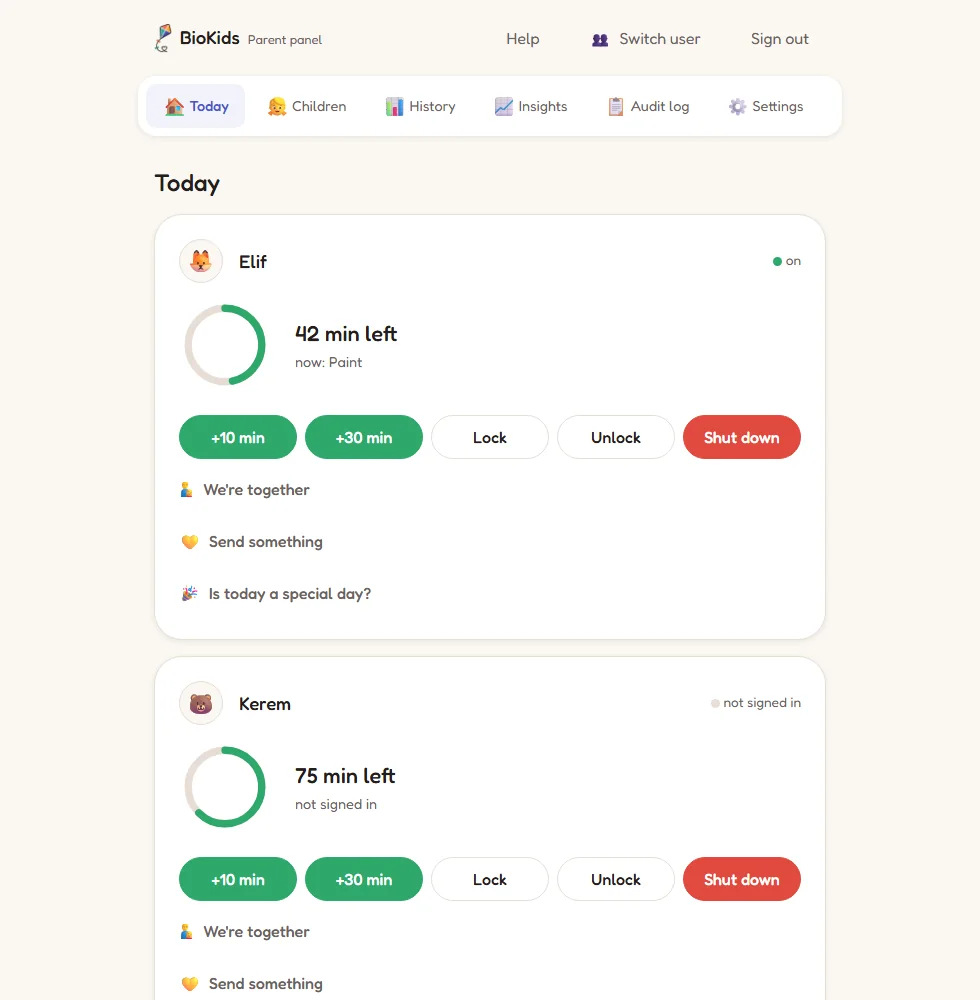
- +10 min and +30 min add time at once; a locked screen opens by itself.
- If the child presses Ask for more time on their screen (it appears in the last 15 minutes), the request reaches Requests and your phone; you answer +15 min, +30 min, +60 min or Not now. Your answer is spoken to the child.
- We're together: while you sit and play together, nothing is counted for 30 min, 1 h or 2 h, with no warnings and no lock. It ends by itself.
- Lock locks the screen at once; Shut down asks first, then shuts the computer down.
Something wrong?
My child's screen is locked. What do I do?
The screen locks when the day's time is used up or outside the allowed hours. Give more time on the Today screen and it unlocks by itself.
Can I turn BioKids off for one child for a while?
Untick Let BioKids manage this child on the time rules page; your passphrase is asked. While it is off, no limits apply to that account. Tick it again and protection is back.
How soon do new rules apply?
As soon as you save. The child's open session carries on with the new rules without restarting.
The computer did not shut down; only the screen locked.
If someone else is also logged in (a sibling, or you), BioKids only locks the screen so that nobody loses their work.