
This guide installs BioKids as the only system on a computer: nothing else stays on it. Installing needs no network and takes 20–40 minutes on most computers.
Before you start
- Have the BioKids USB stick ready: make a USB stick.
- A 64-bit computer with at least 4 GB of memory and 25 GB of disk (requirements).
- Back up anything important on the computer. Plug a laptop in.
- Think of a password for your own parent account on the computer. Your child should not know it.
Installing
Start the computer from the USB stick
Plug the stick in and, while the computer starts (or restarts), keep tapping its boot menu key. It depends on the brand; often F12, F11, F9, F8 or Esc. Pick the USB stick from the list and press Enter.
Boot Menu
- Windows Boot Manager
- UEFI: USB Flash Disk 1.00
- USB Flash Disk 1.00
- Network Boot (IPv4)
↑↓ select · Enter boot
Illustration The computer's own boot menu. It looks different on every brand; look for your stick's name. If the stick is listed twice, once starting with "UEFI: …", choose the UEFI one on a recent computer.
Choose "Start installer"
BioKids' blue boot menu appears. Use the arrow keys to reach Start installer and press Enter.
↑ ↓ · Enter
Illustration The stick's boot menu. The other lines may be named a little differently; the one you want is "Start installer". Choose the language and keyboard
The installer is Debian's own, with BioKids' kite on top. Choose the language, then the keyboard layout. The language you choose becomes the computer's.

Select a language
English - EnglishFrançais - FrenchTürkçe - TurkishGo BackContinueIllustration The installer's banner says BioKids instead of Debian; its questions and buttons are Debian's. The computer's name (
biokids) and the time zone are preset and not asked. The time zone is set to Istanbul; if you live elsewhere, change it after installing (see After installing).Create your parent account
Enter your name, a username (for example
mum) and a password, twice. This is your account on the computer, with administrator rights; no separate "root" password is asked.Do not create your children's accounts here: the setup wizard makes them after installing, and a child signs in by tapping their picture instead of typing a password.
Choose the disk
On Partition disks, choose "Guided - use entire disk", then the disk, and accept "All files in one partition".
Partition disks
Partitioning method:
Guided - use entire diskGuided - use entire disk and set up LVMGuided - use entire disk and set up encrypted LVMManualGo BackContinueIllustration The partitioning method. "Use entire disk" for a computer with only BioKids; installing beside Windows uses another option. On the last screen choose Finish partitioning and write changes to disk and confirm with Yes. From this moment the old contents of the disk are gone.
Wait for it to finish
The installer copies BioKids from the stick to the disk; no internet needed. It takes 20–40 minutes on most computers. If it asks about the boot loader, accept the suggested choice (the computer's main disk).
Take the stick out and restart
When it says the installation is complete, take the USB stick out and press Continue. BioKids' kite appears while the computer starts.
With only BioKids on the computer, the boot menu stays hidden and the computer starts straight away.
Sign in and let the wizard welcome you
On the login screen choose your account and type your password. The BioKids setup wizard opens by itself: language, your PIN, your first child, their apps, time, internet… nine short steps.
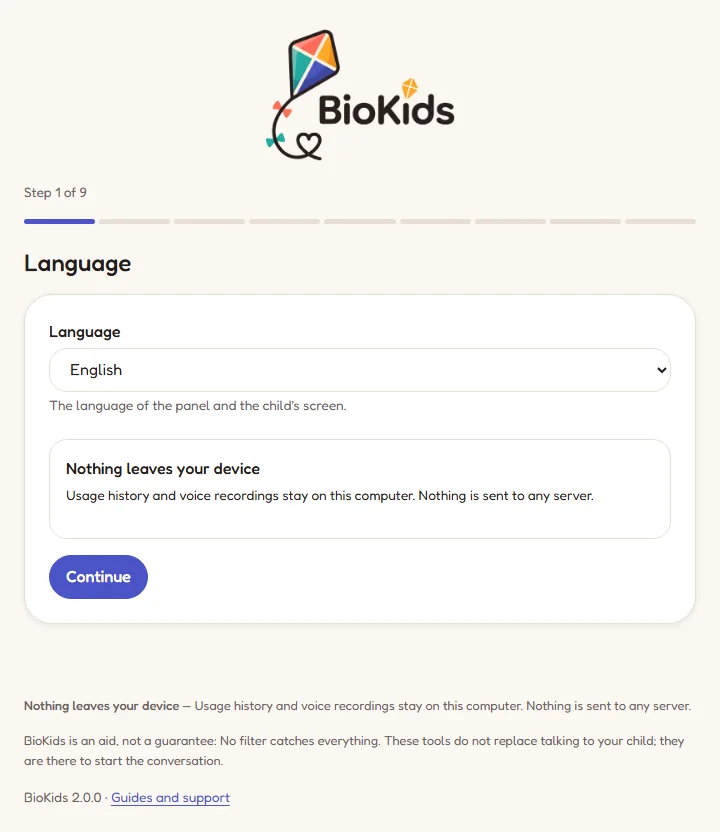
Real screenshot The wizard's first step. The first-setup guide walks through every step. Continue with the first-setup guide.
After installing
- When the wizard is done, restart once: only then does your child's picture appear on the login screen.
- The parent panel is the BioKids Parent Panel icon on your desktop, and in the applications menu.
- Not in Turkey? The installer sets the time zone to Istanbul. Open a terminal from your own account and set yours (find its name with
timedatectl list-timezones):
sudo timedatectl set-timezone Europe/LondonBioKids never updates itself; updates come with Debian's usual updates.
Something wrong?
The USB stick is not in the boot menu
Try another USB port (straight into the computer, not a hub). If "Fast Boot" is on in the computer's settings (BIOS/UEFI), turn it off. If the stick still does not show, write it again with Etcher, or Rufus in DD mode.
The stick is chosen but does not start, or a "Secure Boot" message appears
BioKids uses Debian's signed boot loader, so Secure Boot can stay on with most computers. If yours still refuses, turn Secure Boot off in the computer's settings and try again.
It did not find the Wi-Fi
Installing needs no network, so carry on. The image includes drivers for common Wi-Fi cards; if yours is not recognised, use a cable after installing and fill in the hardware form, and we will sort it out together.
The clock is wrong after installing
Set your own time zone as shown in After installing; the time corrects itself once the computer is online.