
With BioKids the internet is open and the worst of it is closed. The blocking happens on the computer itself, on the children's accounts only; the internet on your own account does not change at all. A few settings shape it for your child.
Open the Internet page
In the panel go to Children and press Internet on your child's card. The green box at the top says the filter is running: Harmful-site protection is on.
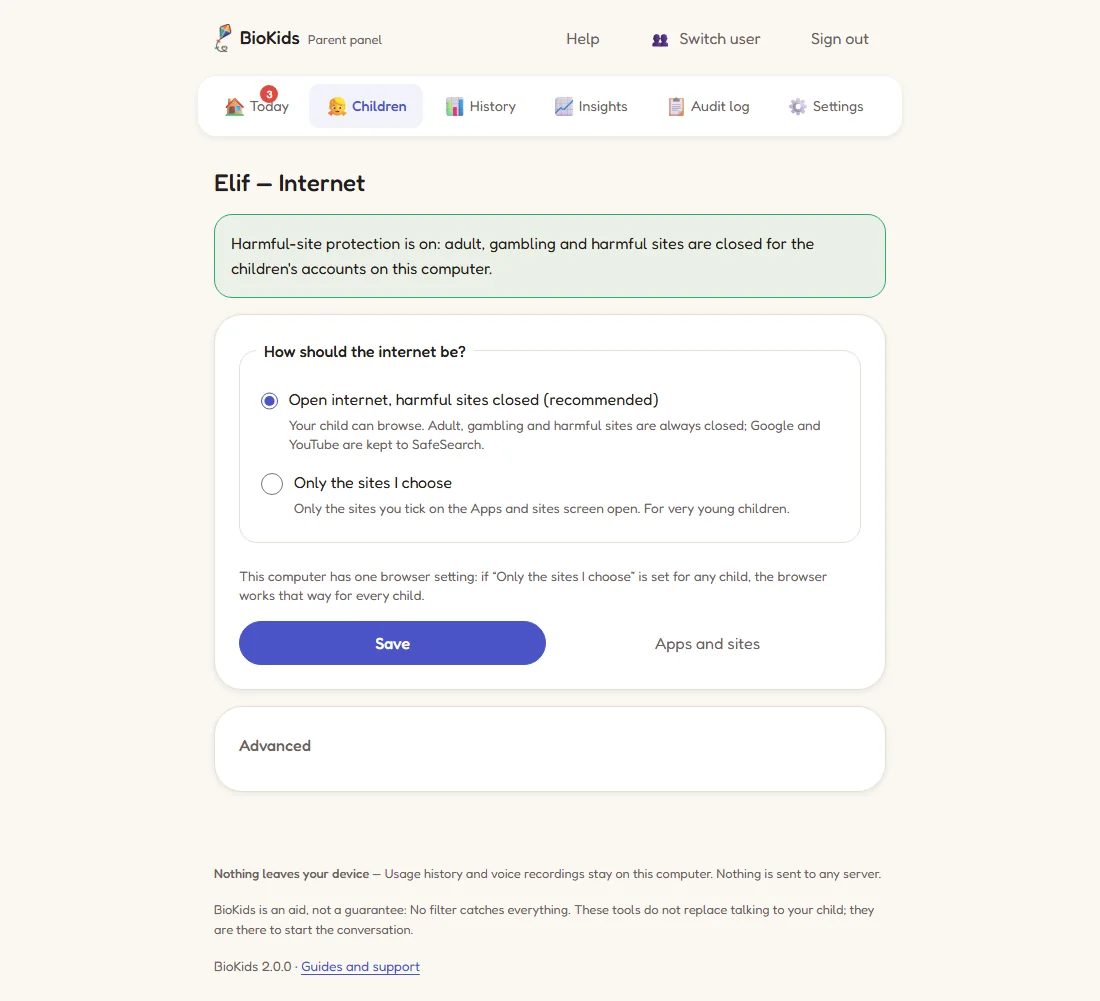
Real screenshot A child's Internet page. Choose how the internet works
How should the internet be? has two answers:
- Open internet, harmful sites closed (recommended): your child can browse; adult, gambling and harmful sites are always closed. This is the default for every age.
- Only the sites I choose: only the sites you tick on the Apps and sites screen open. For very young children.
Press Save.
Tick the sites that suit your child
The Apps and sites link on the same page opens your child's tiles. Whatever you tick appears as a tile on their screen; nothing you leave unticked ever appears. The ready list includes Scratch, Music Lab, Coding (Code.org), Blockly Games and Turkish children's sites such as EBA and TRT Çocuk. Some come unticked and stay off until you tick them: YouTube Kids, Google Earth, PBS KIDS Games, LearnEnglish Kids and StoryWeaver.
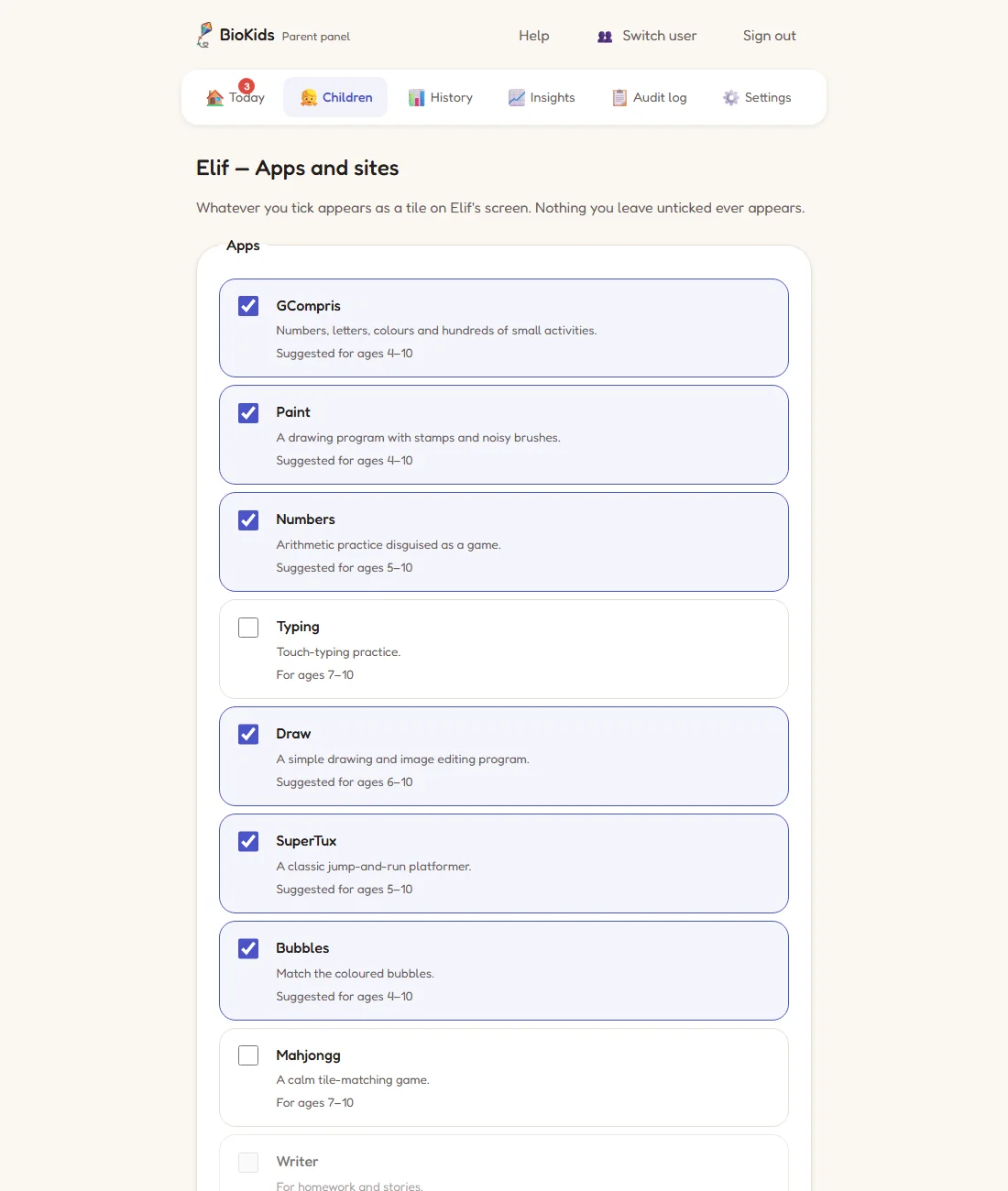
Real screenshot Apps and sites: whatever you tick becomes a tile on your child's screen. Answer your child's requests
If your child tries a closed site, they see a friendly page: This is not for you. If they press Ask a grown-up there, the request reaches the panel's Requests screen and your phone.
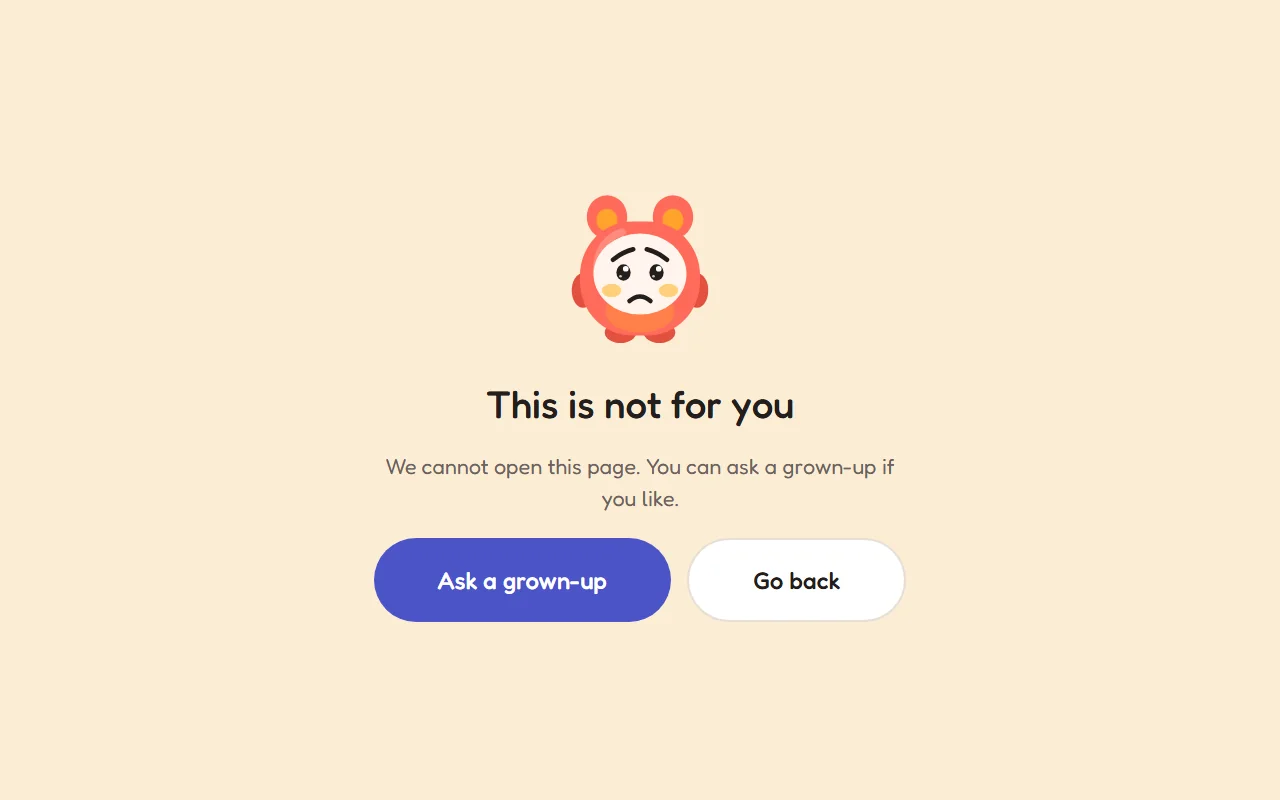
Real screenshot A closed site, on the child's screen. Allow opens that site, Not now keeps it closed. Your answer appears on the child's screen at once and is spoken. The same screen answers requests for apps and for more time.
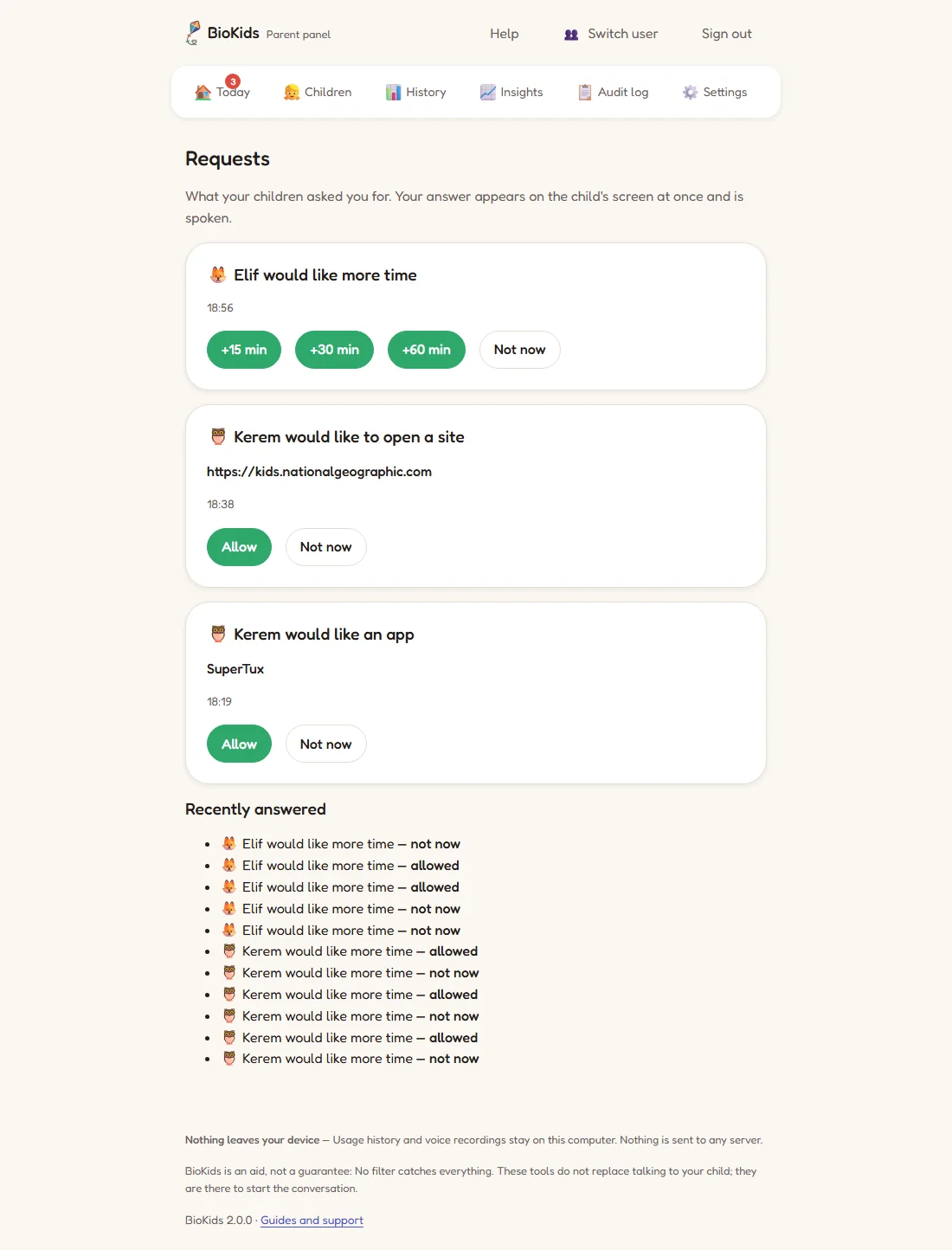
Real screenshot Requests: time, sites and apps in one place. Add words that cannot be searched, if you like
Open Advanced at the bottom of the Internet page. BioKids already stops adult and harmful searches with a built-in list of 89 words: they cannot be searched on Google, YouTube, Wikipedia or in other search boxes, and the search is never sent. Type any other words you want blocked in Words that cannot be searched, one per line. The list applies to all your children.
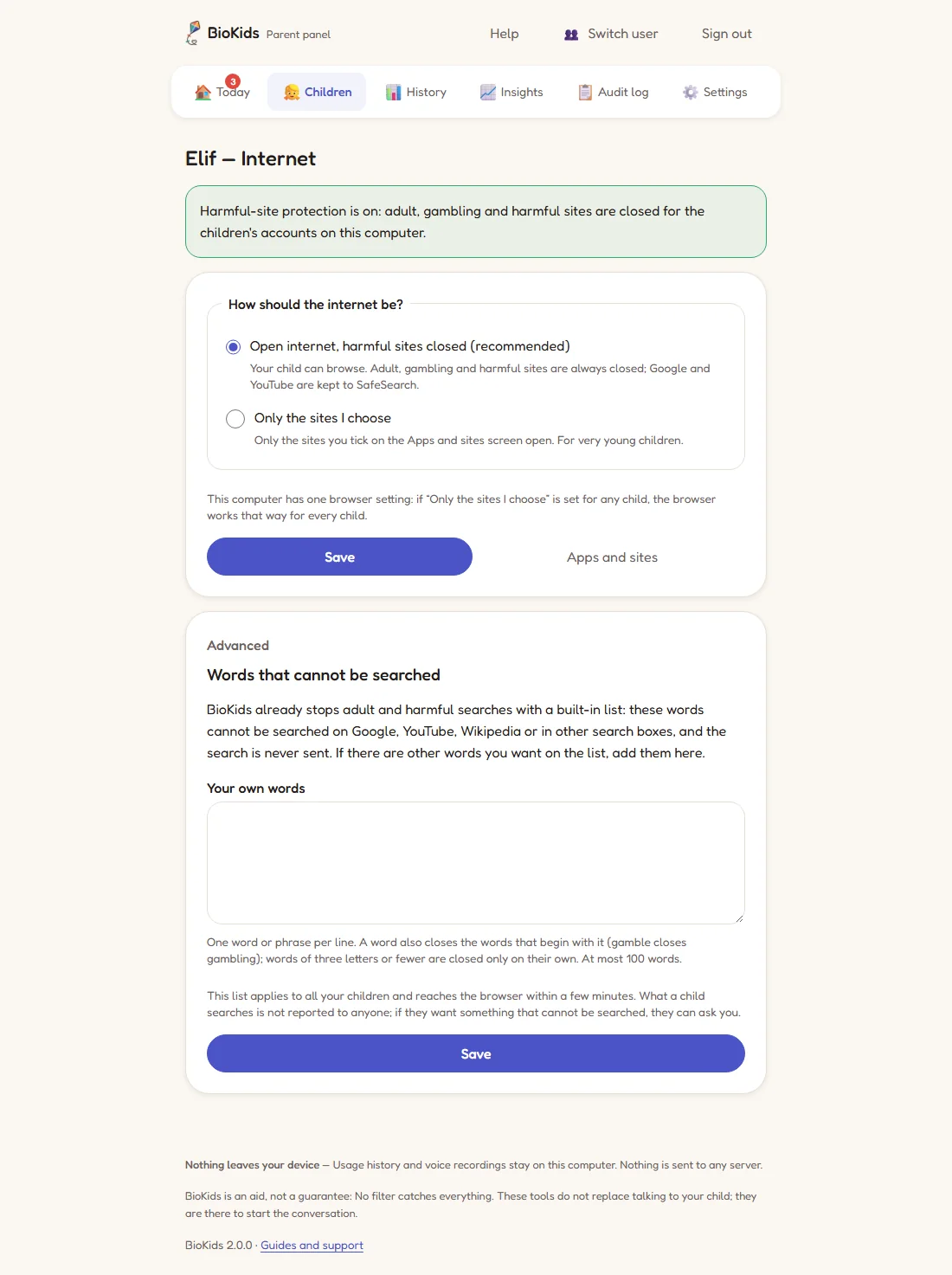
Real screenshot Advanced: your own list of words.
What is always closed
- Adult, gambling, malware and scam sites: about 291,000 domains. The list ships with BioKids and works offline.
- Encrypted DNS (DoH) services that could be used to get around the filter.
- Safe search is enforced: SafeSearch on Google, Bing and DuckDuckGo, and YouTube's restricted mode.
- No proxy in the middle: BioKids never decrypts anyone's traffic; the filter runs in the computer's own DNS (dnsmasq and nftables).
Something wrong?
A site that suits my child does not open.
Let your child press Ask a grown-up on the closed page; the request reaches Requests and Allow opens the site. You can also check under Apps and sites whether it is in the ready list.
Their sibling's browser also acts like "only the sites I choose".
The computer has one browser setting: once a child is on that mode, it applies to every child. If an older child should have the open internet, keep both on Open internet, harmful sites closed.
The panel says "Harmful-site protection is not running".
For safety, the children's accounts cannot reach the internet right now. Try restarting the computer; if that does not help, see Troubleshooting.
Can I see which sites they visit?
Yes, in History when you open a day ("Sites opened"), and in Insights. Only the sites' names are kept, for 30 days.