
Once BioKids is installed, a setup wizard opens by itself the first time you sign in with your parent account. In nine short steps you choose your PIN, add your first child and set their rules. It opens again at every sign-in until it is finished, and it never opens in a child's session.
Choose the language
The language of the panel and of the child's screen: Türkçe or English. The box below it is BioKids' promise: Nothing leaves your device. Press Continue.
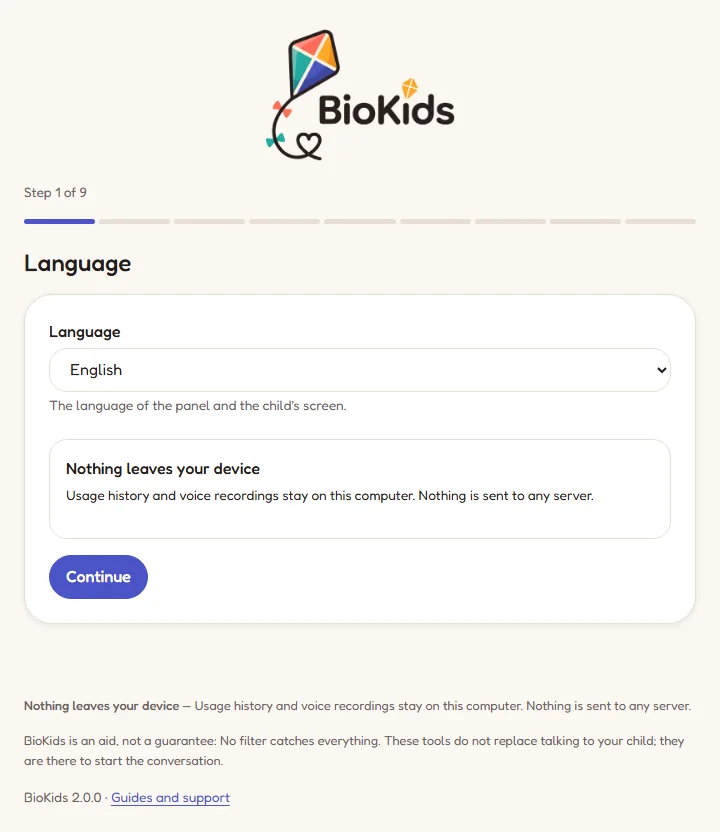
Real screenshot Step 1 of 9: Language. Create your parent account
Your name and a 6-digit PIN: you will use it every time you open the panel. Type it again in the second box. PINs that are easy to guess, such as 123456 or 111111, are refused.
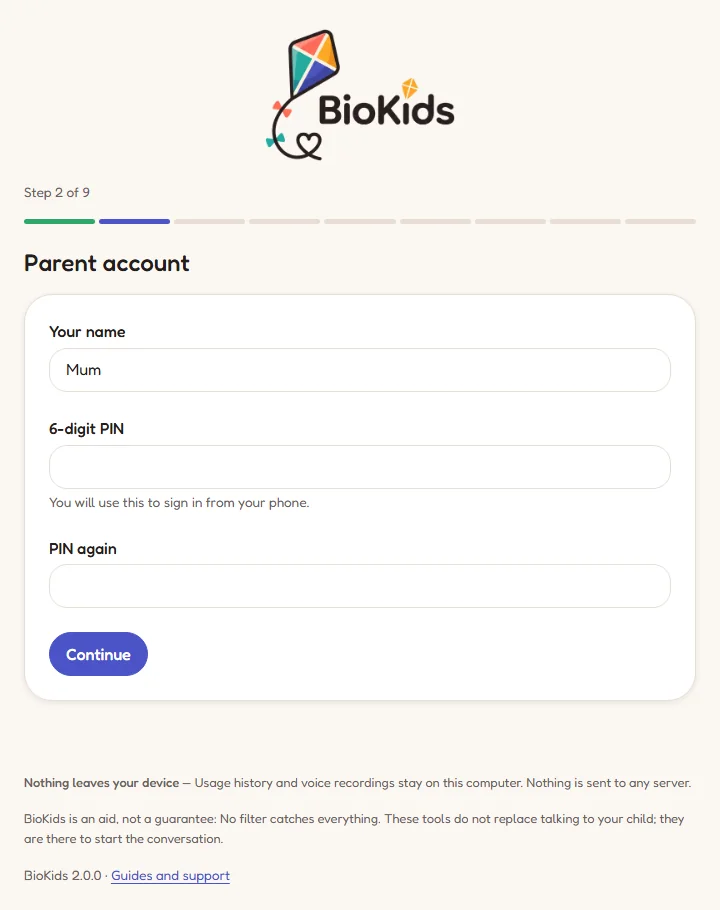
Real screenshot Step 2 of 9: Parent account. Write down the passphrase and the recovery code
First choose a Passphrase of at least 10 characters. It is separate from the PIN and is asked for the big things: turning protection off, removing a child or a parent, and backing up.
Below it is Your recovery code: 8 words. It is the easiest way back in if you forget your PIN, and it is never shown again. The words are Turkish words written without Turkish letters (such as sifir), even in English. Write them on paper, then tick I have written the recovery code down.
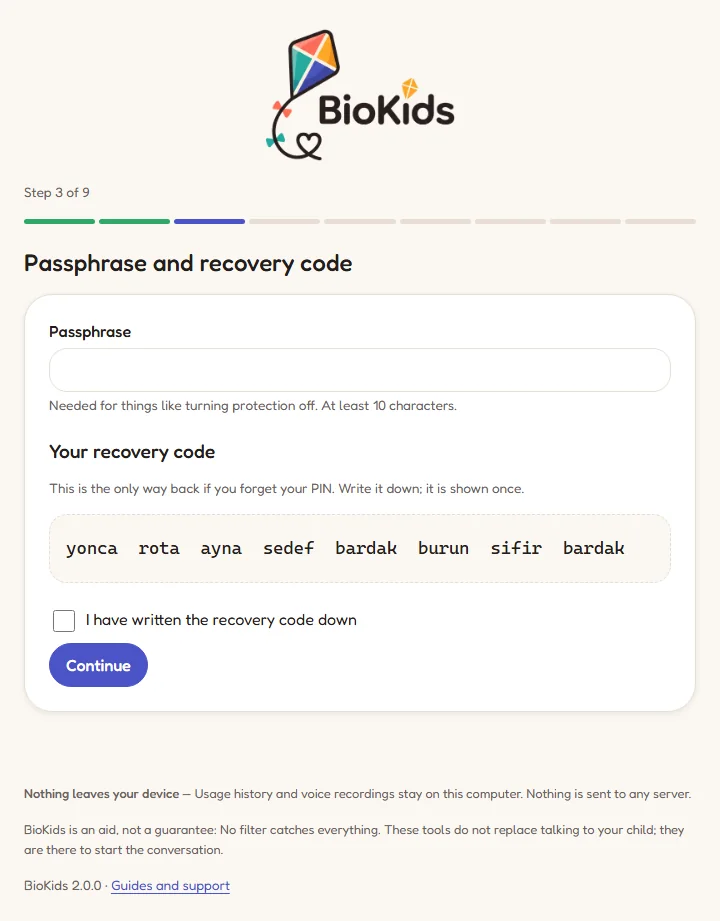
Real screenshot Step 3 of 9: Passphrase and recovery code. These words are an example; yours will differ. Add your first child
Their name, year of birth, a username on the computer (lowercase letters and digits only, e.g.
elif), a picture for the login screen, and the language of their screen.The year of birth decides the look of their screen: up to age 7, bigger tiles that read themselves aloud (the 4–7 look); after that, more tiles, a clock and their own files (the 8–10 look). You can add your other children later in the panel.
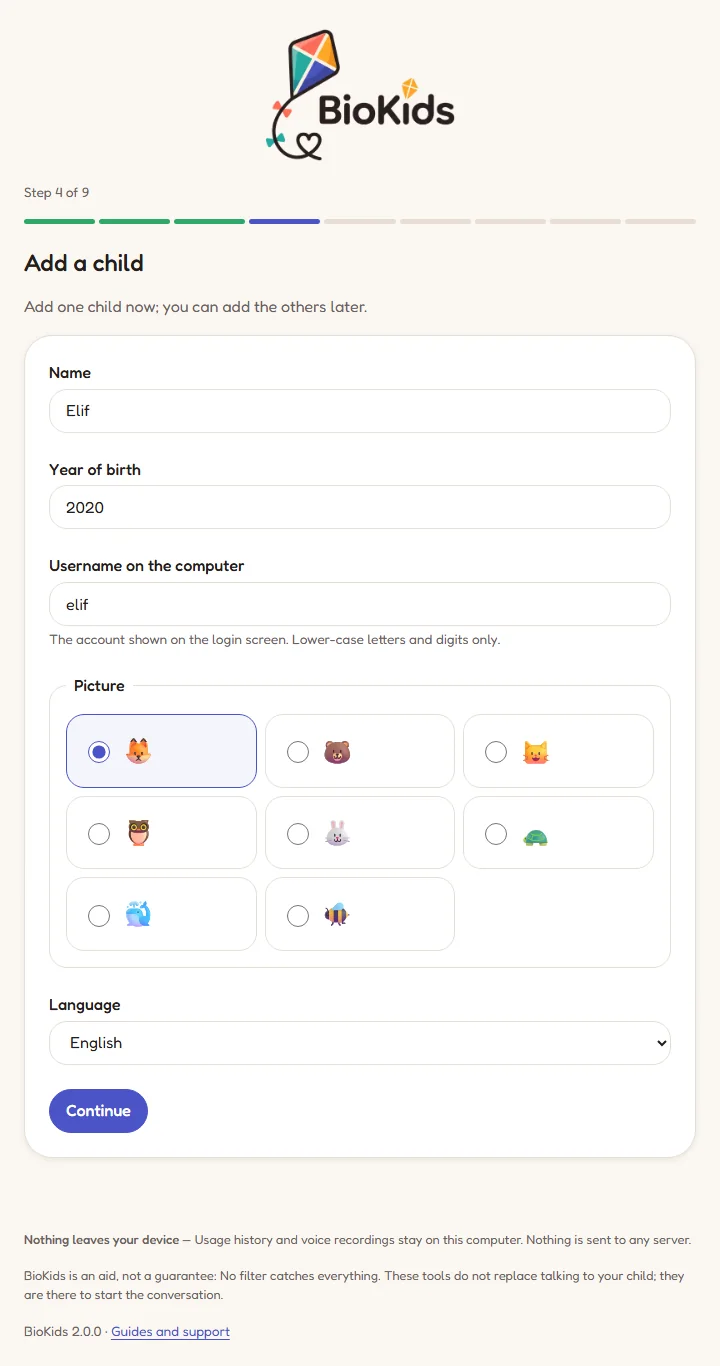
Real screenshot Step 4 of 9: Add a child. Choose the apps
Choose which tiles your child will see. The ones that suit their age come ticked: GCompris, Paint, Numbers, Music Lab, English and others. Volume, brightness and the shut-down button always stay on the screen. You can change all of this later in the panel.
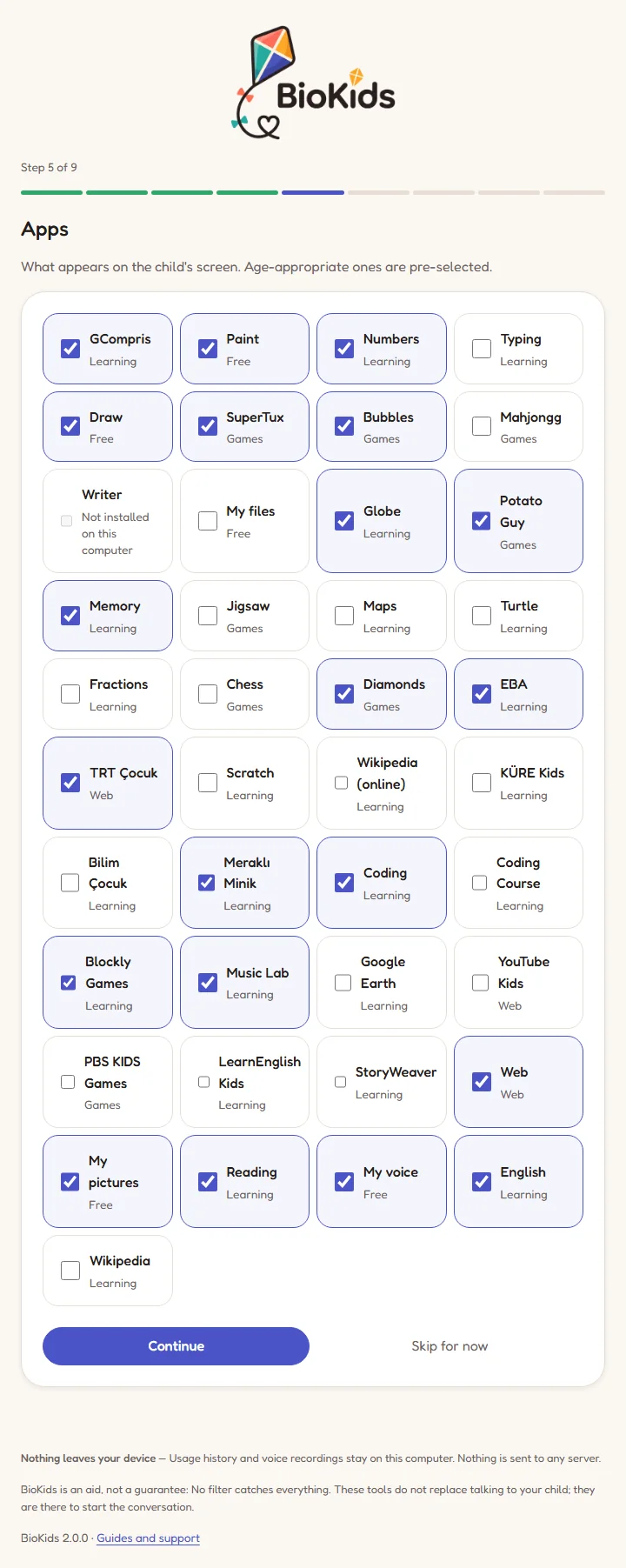
Real screenshot Step 5 of 9: Apps. From this step to step 8 there is also a "Skip for now" button. Set the daily time
BioKids suggests a starting point by age: for 4–7, 60 minutes on weekdays and 90 at weekends; for 8–10, 120 and 180. In Allowed hours type something like
16:00-20:00, or leave it empty to allow the whole day.Choose what happens When time runs out: Lock the screen, Log out, or Shut the computer down (the default). More rules are in the time rules guide.
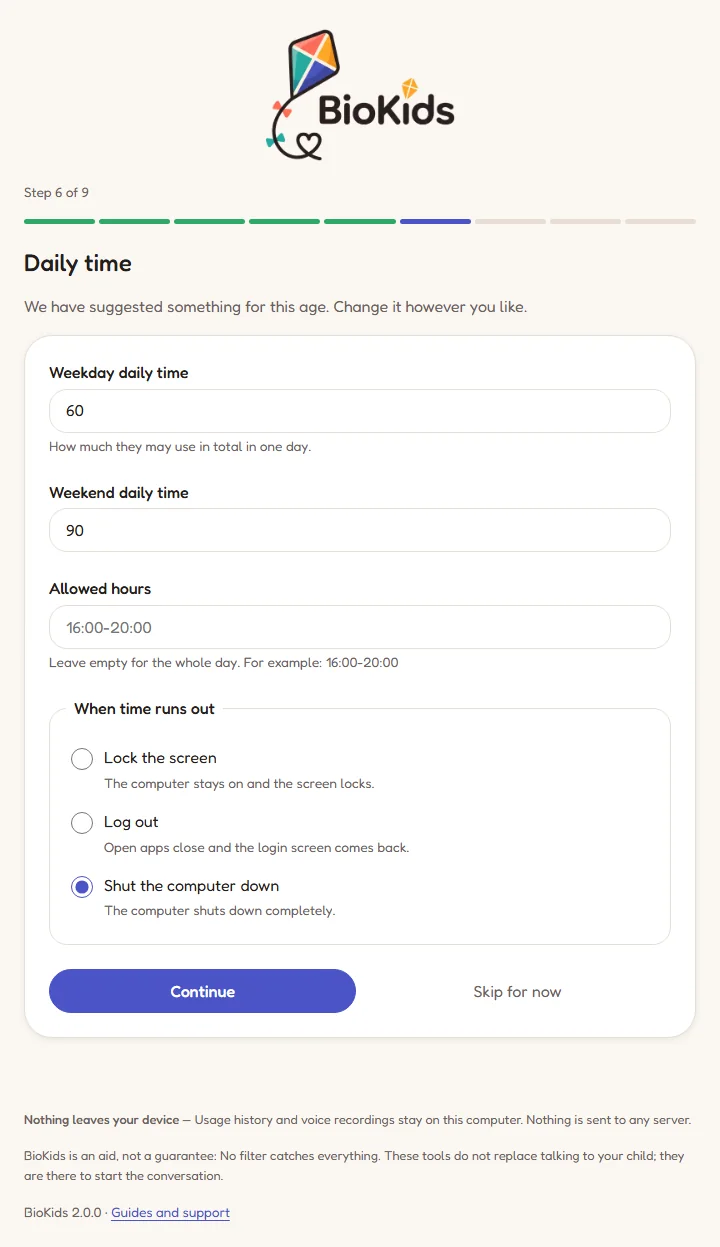
Real screenshot Step 6 of 9: Daily time. Choose how the internet works
For most families the right choice is Open internet, harmful sites closed (recommended): adult, gambling and harmful sites are always closed, and Google and YouTube are kept to SafeSearch. For very young children you can choose Only the sites I choose. Details: safe browsing guide.
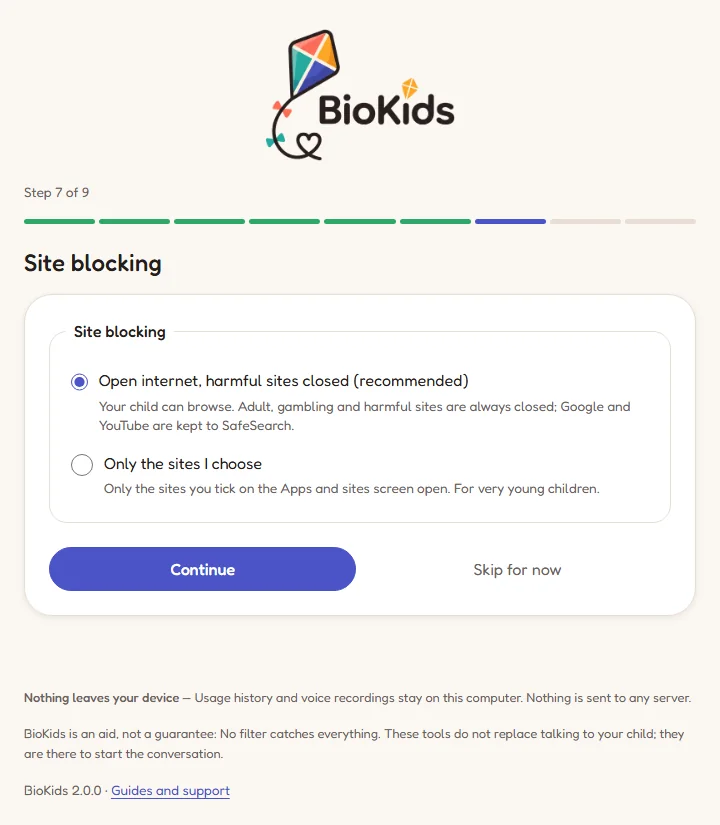
Real screenshot Step 7 of 9: Site blocking. Turn on phone access (or leave it for later)
To open the panel on your phone, at home or away, BioKids uses the free Tailscale app: four steps, about five minutes. If you would rather not now, press Skip for now; you can turn it on later in Settings → Access from your phone. Step by step: phone access guide.
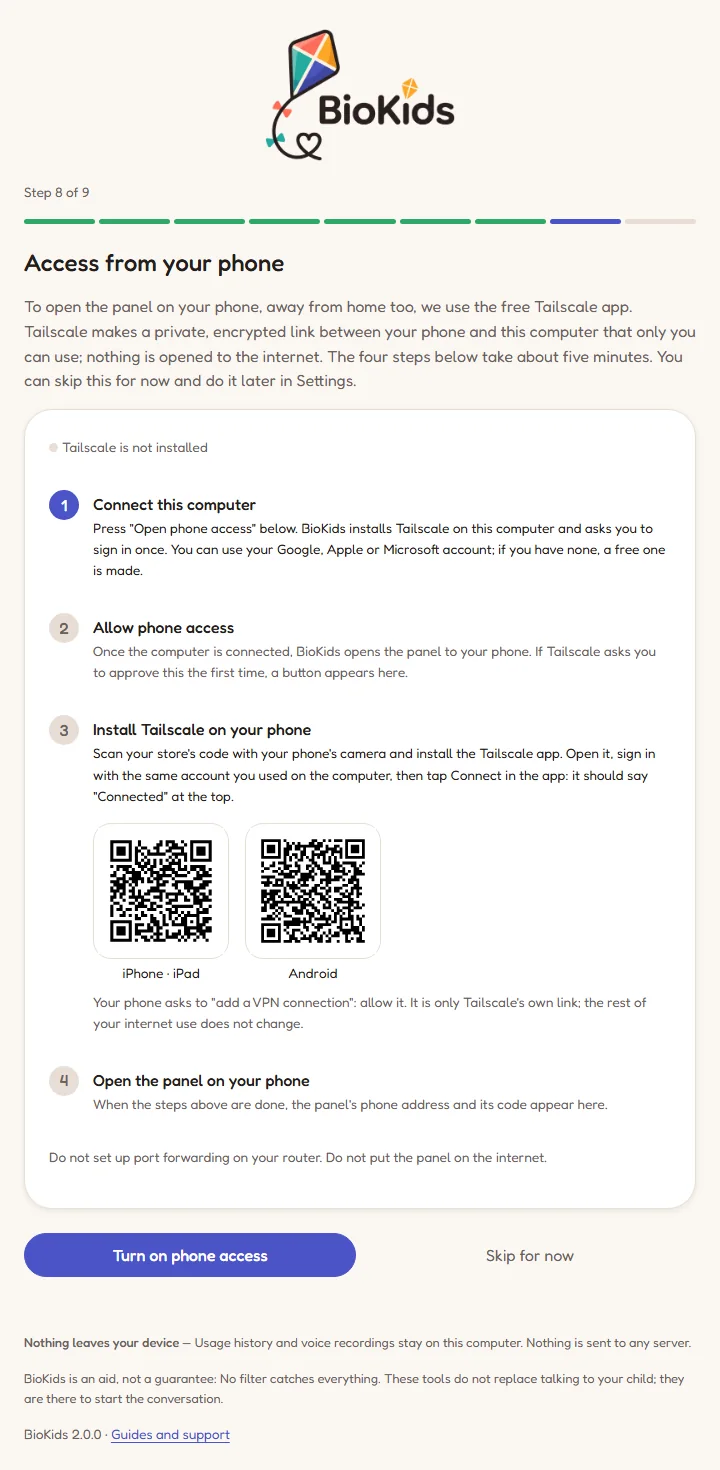
Real screenshot Step 8 of 9: Access from your phone. Choose Zio and Sio's voice
With Voices on, Zio and Sio say the time warnings aloud. Tick the box below it to download a natural, human-like voice (about 153 MB; with no internet, BioKids keeps trying until it gets through). It comes ticked for Turkish families, unticked for English ones. You can also record your own voice later in the panel. Press Finish.
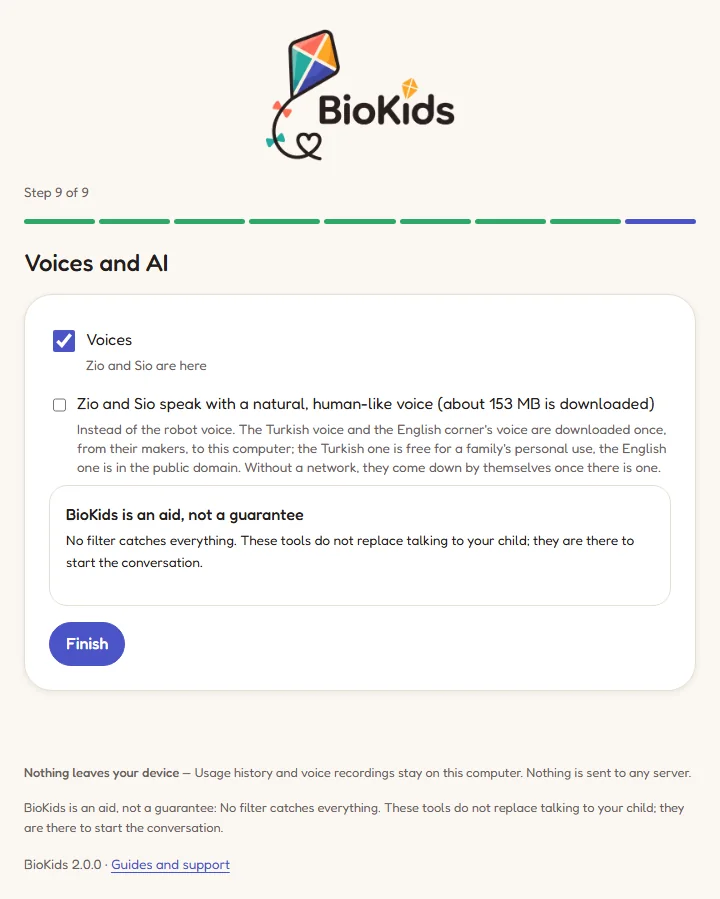
Real screenshot Step 9 of 9: Voices and AI. Restart the computer once
The last page says Ready and lists three small things left to do. The most important: restart the computer once. Only then does your child's picture appear on the login screen. Until you do, the panel's Today screen shows a Restart now button.
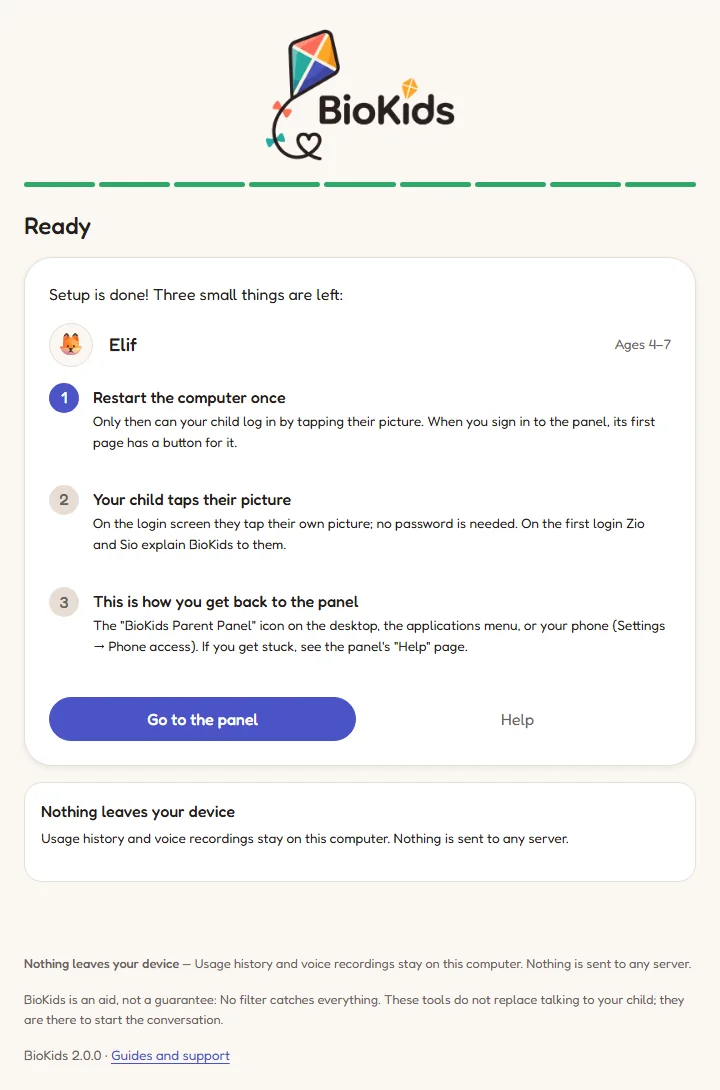
Real screenshot The last page: Ready. Your child taps their picture
On the login screen your child taps their own picture; no password is needed. At their first login Zio and Sio introduce themselves and explain what the family can see, aloud too for the youngest. Supervision is never hidden.
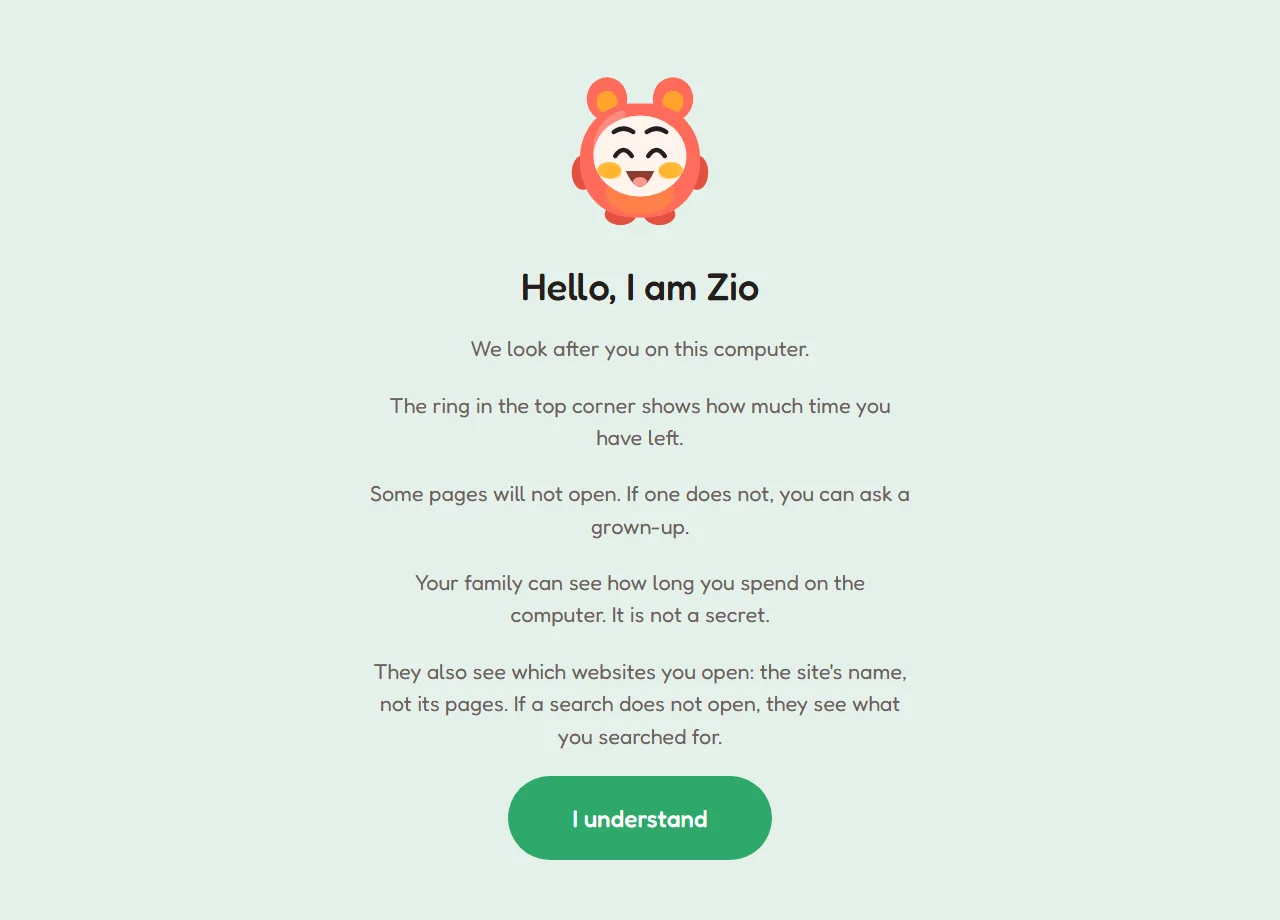
Real screenshot The child's first login: Zio explains what the family can see.
Where is the panel?
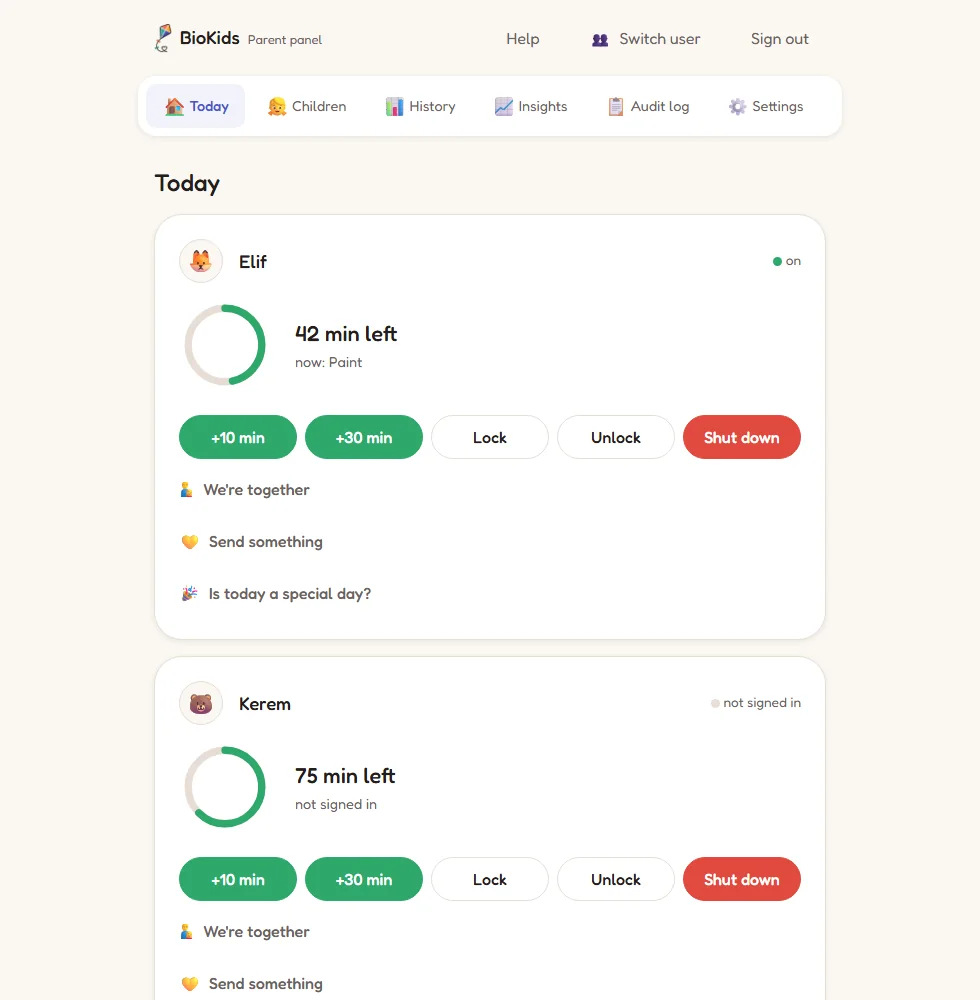
The parent panel is the BioKids Parent Panel icon on your desktop and in the applications menu, and it opens by itself when you sign in with your parent account (you can turn that off in Settings). If you turned on phone access, it is on your phone too. The panel's Help page answers the common questions, even offline.
Something wrong?
The wizard did not open.
The wizard opens only when you sign in with your parent account. If it did not, double-click the BioKids Parent Panel icon on the desktop; the panel takes you to the step where you left off.
My child is not on the login screen.
The computer needs one restart after setup. If they are still missing, check that your child is listed on the panel's Children screen.
I filled in a step wrongly.
No problem: time, apps, internet and voices can all be changed later in the panel. Add or edit children on the Children screen.
I forgot to write down the recovery code.
As long as you know your PIN, nothing is lost. If you forget the PIN too, type sudo biokids-admin reset-pin in a terminal on the computer to set a new one: Troubleshooting.