
Want to see BioKids before putting it on a real computer? With the free VirtualBox you can make a "virtual computer" inside your own and install BioKids there. Nothing happens to your real disk.
Before you start
- VirtualBox 7 from virtualbox.org (free for Windows, Intel Macs and Linux).
- The BioKids ISO from the download page. No need to write it to a USB stick.
- At least 8 GB of memory and 45 GB of free disk on your computer.
Create the virtual machine
Make a new machine
In VirtualBox press Machine → New. Name:
BioKids. As the ISO Image, choose the BioKids ISO. Type Linux, version Debian (64-bit).Set the memory, processors and disk
Memory 4096 MB; 8192 MB or more to try the Ask Me assistant too Processors 2 or more EFI Optional: both EFI and BIOS work Hard disk 40 GB, dynamically allocated (it grows as it is used) Set the graphics controller to VBoxSVGA
Select the machine and go to Settings → Display. Set the Graphics Controller to VBoxSVGA and raise the video memory to 128 MB. On some computers the screen stays black with VMSVGA.
Install BioKids
Start it and choose "Start installer"
Press Start. When BioKids' menu appears, choose Start installer. The language, keyboard and parent account are as in the install guide.
Clicking inside the virtual machine may "capture" the mouse; press the right Ctrl key (the Host key; on a Mac the left ⌘) to get it back.
Disk: "use entire disk" is safe here
In the virtual machine you can choose "Guided - use entire disk": what gets erased is only the machine's own 40 GB virtual disk. Your real disk is not touched.
Remove the ISO and restart
When it is done, before restarting, choose Devices → Optical Drives → Remove disk from virtual drive in VirtualBox's menu. Then press Continue.
Finish the wizard and sign in as a child
Sign in with your account; the setup wizard opens. Add a test child, restart the virtual machine once when the wizard is done, and click the child's picture on the login screen. Now you see what your child would see.
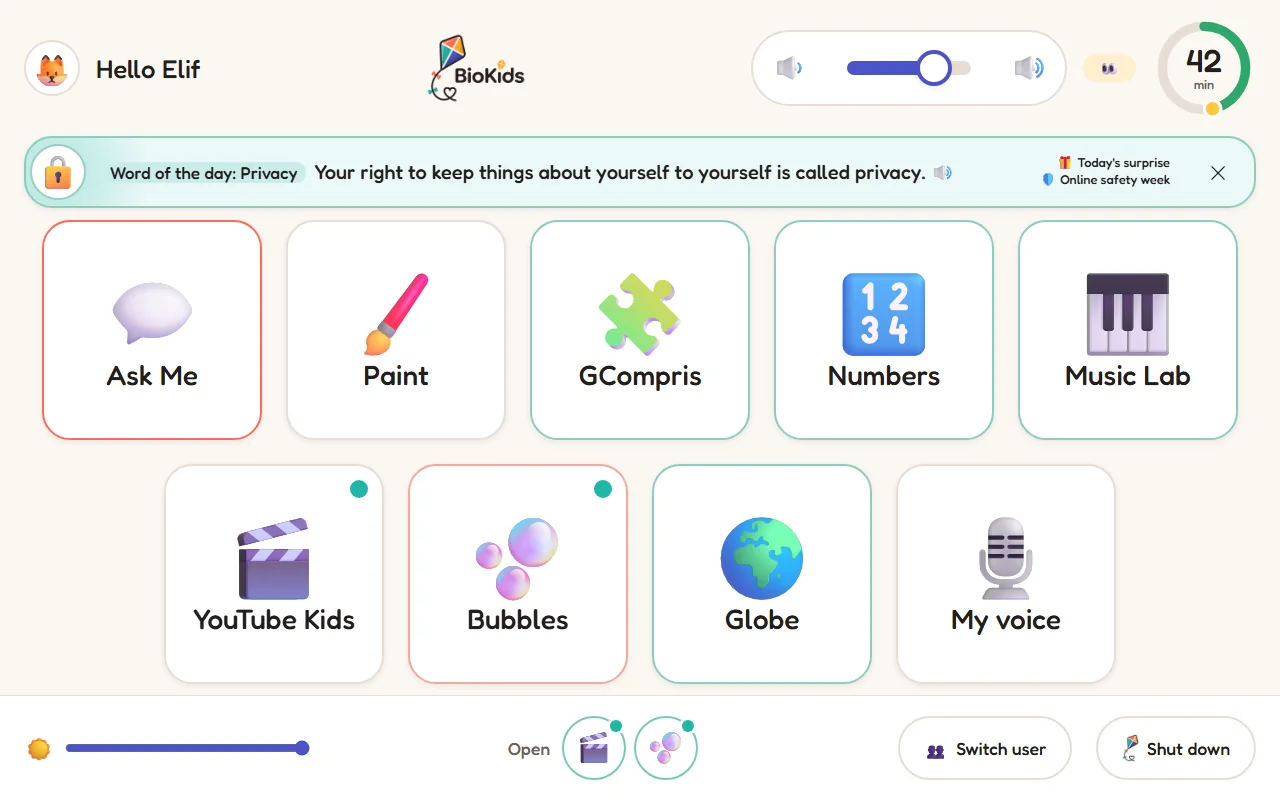
Real screenshot The same launcher opens in the virtual machine.
Tips
- Before trying something, press Machine → Take Snapshot; one click brings everything back to that moment.
- The virtual machine is much faster while its window is in front. The assistant answers noticeably slower in a virtual machine than on a real computer; that is normal.
- The installer sets the time zone to Istanbul; if you live elsewhere, change it as shown in the install guide.
- Like it? To install it on a real computer: make a USB stick.
Something wrong?
The screen stays black
Turn the machine off, check that Settings → Display → Graphics Controller is VBoxSVGA, and start it again.
It says "No bootable medium found"
The ISO is not attached. In Settings → Storage, choose the BioKids ISO for the optical drive. If it says this after installing, the installation did not finish; install again.
Everything is very slow
Give it more processors, keep the virtual machine's window in front, and close other heavy programs on your computer.